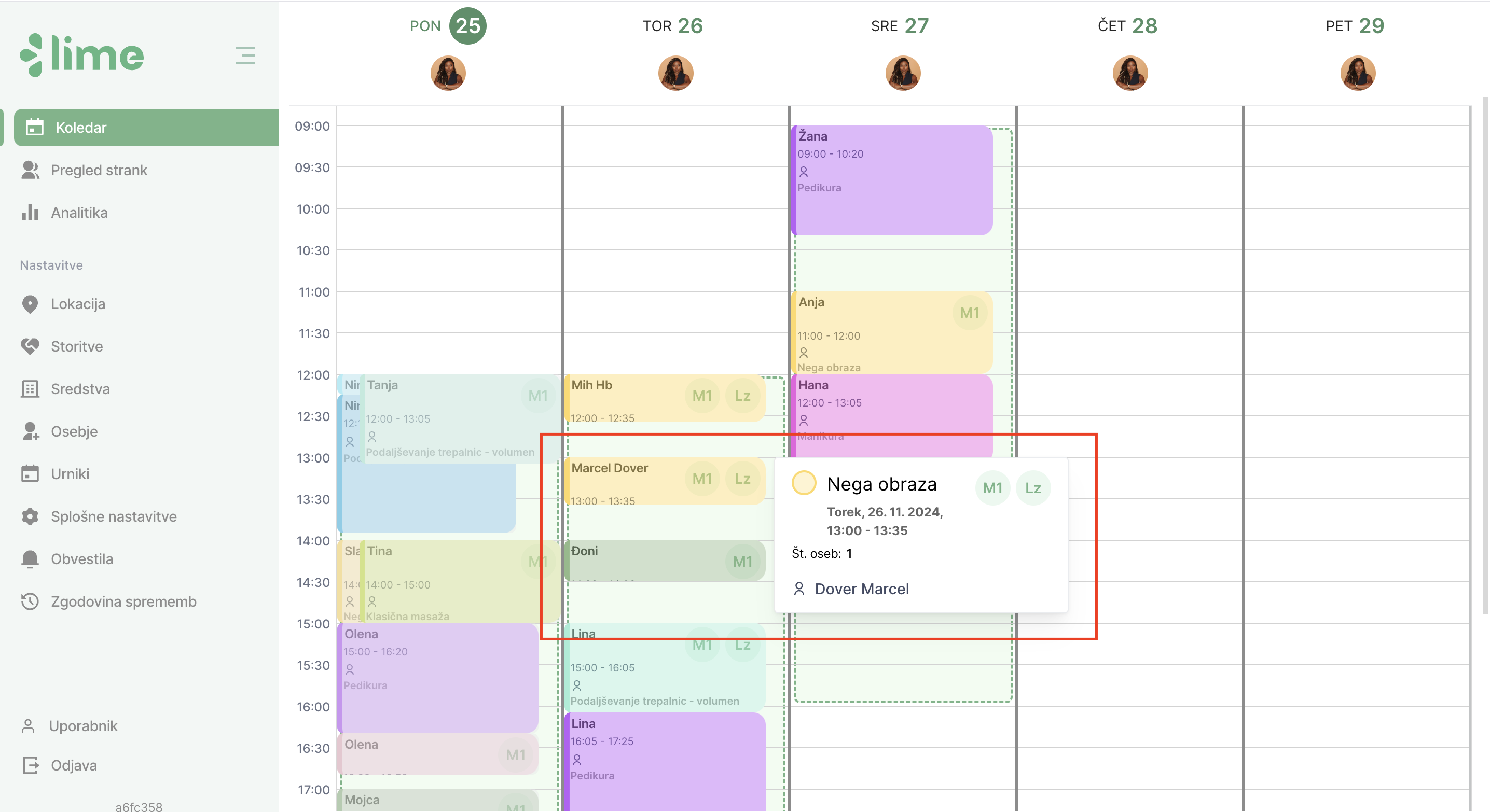
Appointment Reservation
Upon logging into your user account, the calendar tab will open. You can always access it by selecting the ''Calendar'' tab from the left menu bar.
Adding an Appointment
1. Select the slot where you would like to place the appointment.
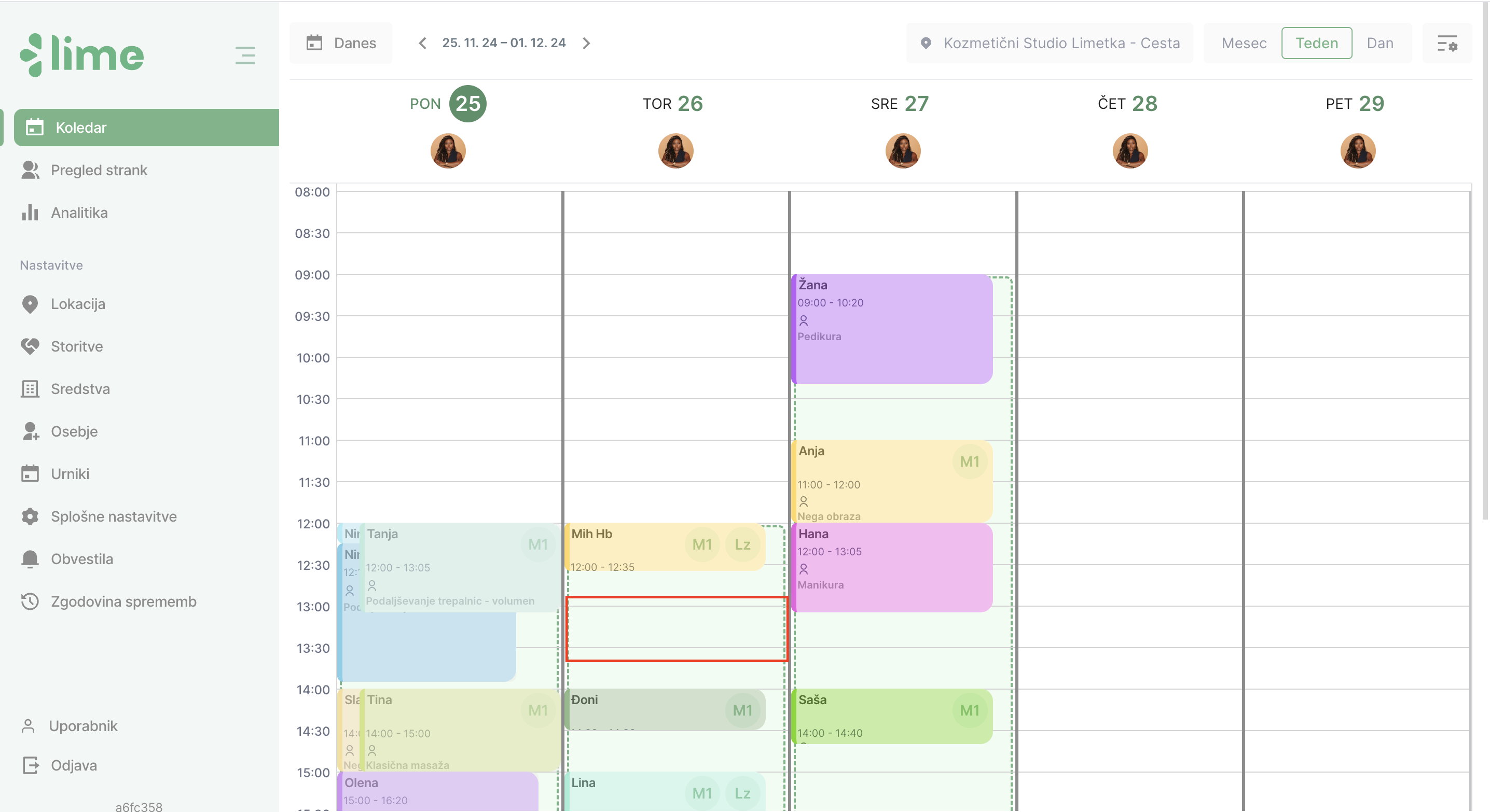
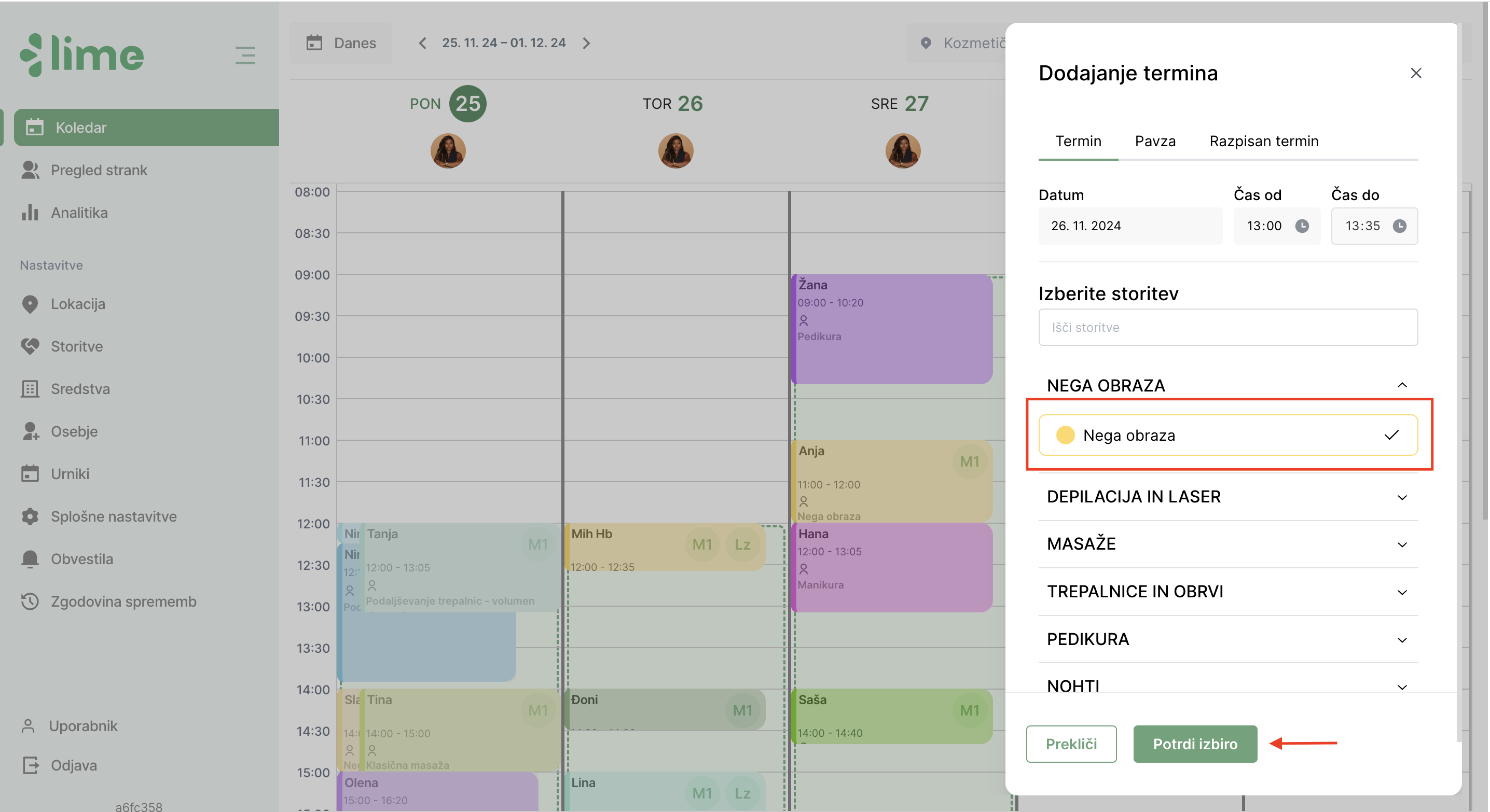
2. Upon clicking, the service selection module will appear. You can select a service by clicking on a specific category or search for it using the search bar.
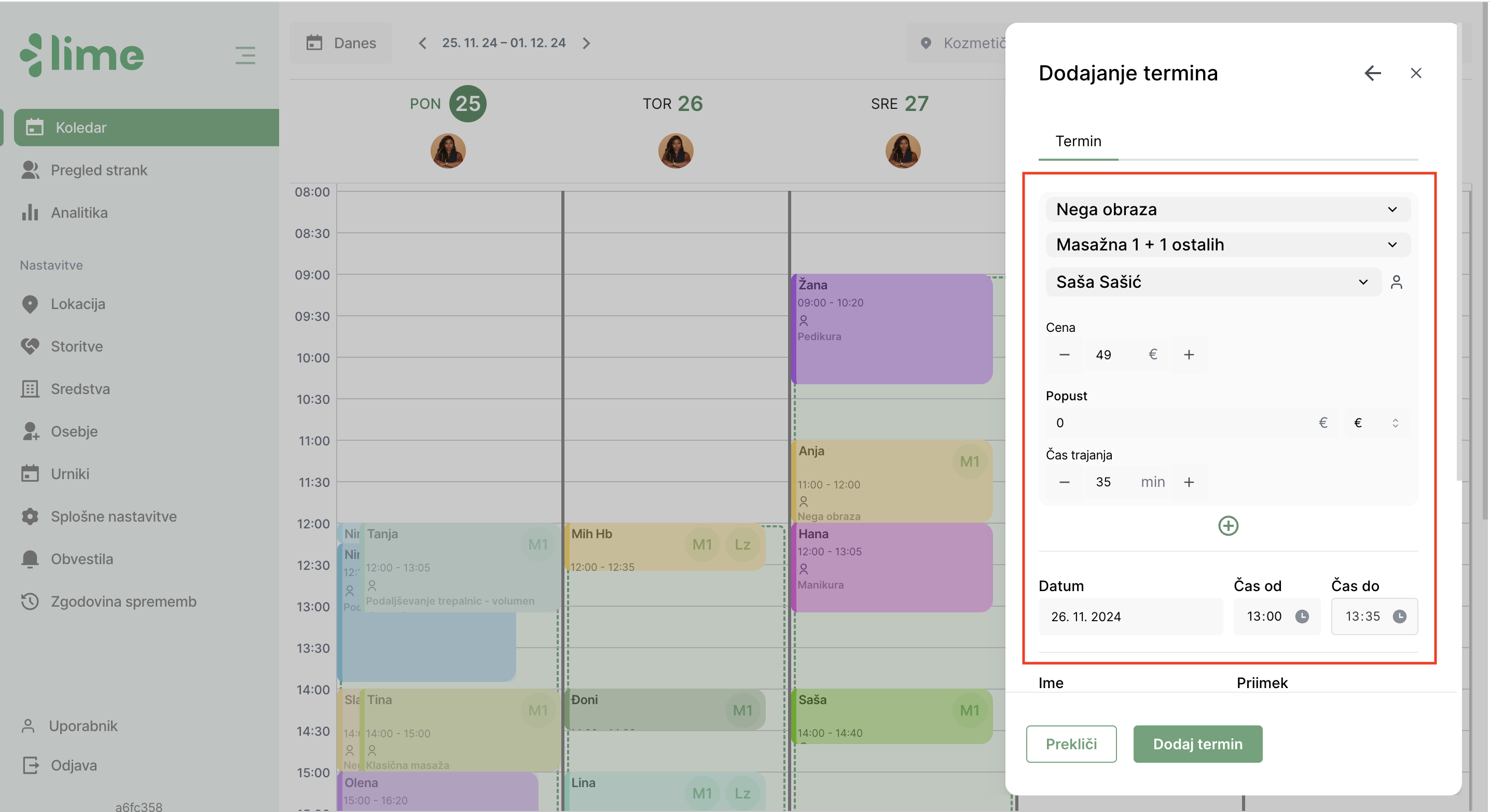
3. The module will display information about the service provider, the service itself, location, date, and time range. You can freely adjust the duration, as well as change the price or apply a discount.
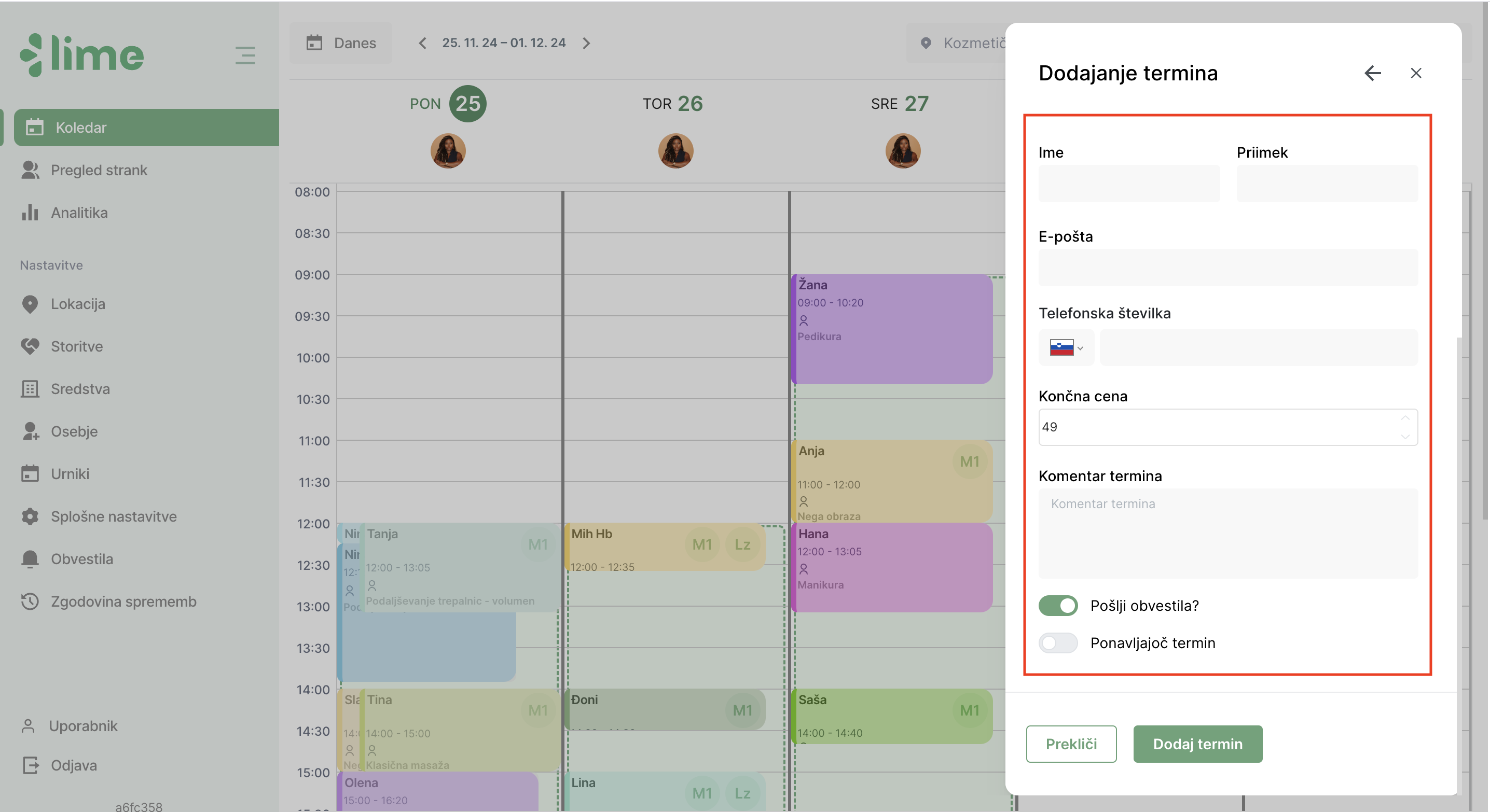
4. In the lower part of the module, fill in the customer’s details such as: first name, last name, phone number, and email address. You can optionally add a comment. Confirm the appointment by clicking the ''Add Appointment'' button.
5. The appointment is now successfully added to the calendar. When you hover over the appointment with the mouse, the service details will appear, showing which service the customer is booked for.