
Service Management
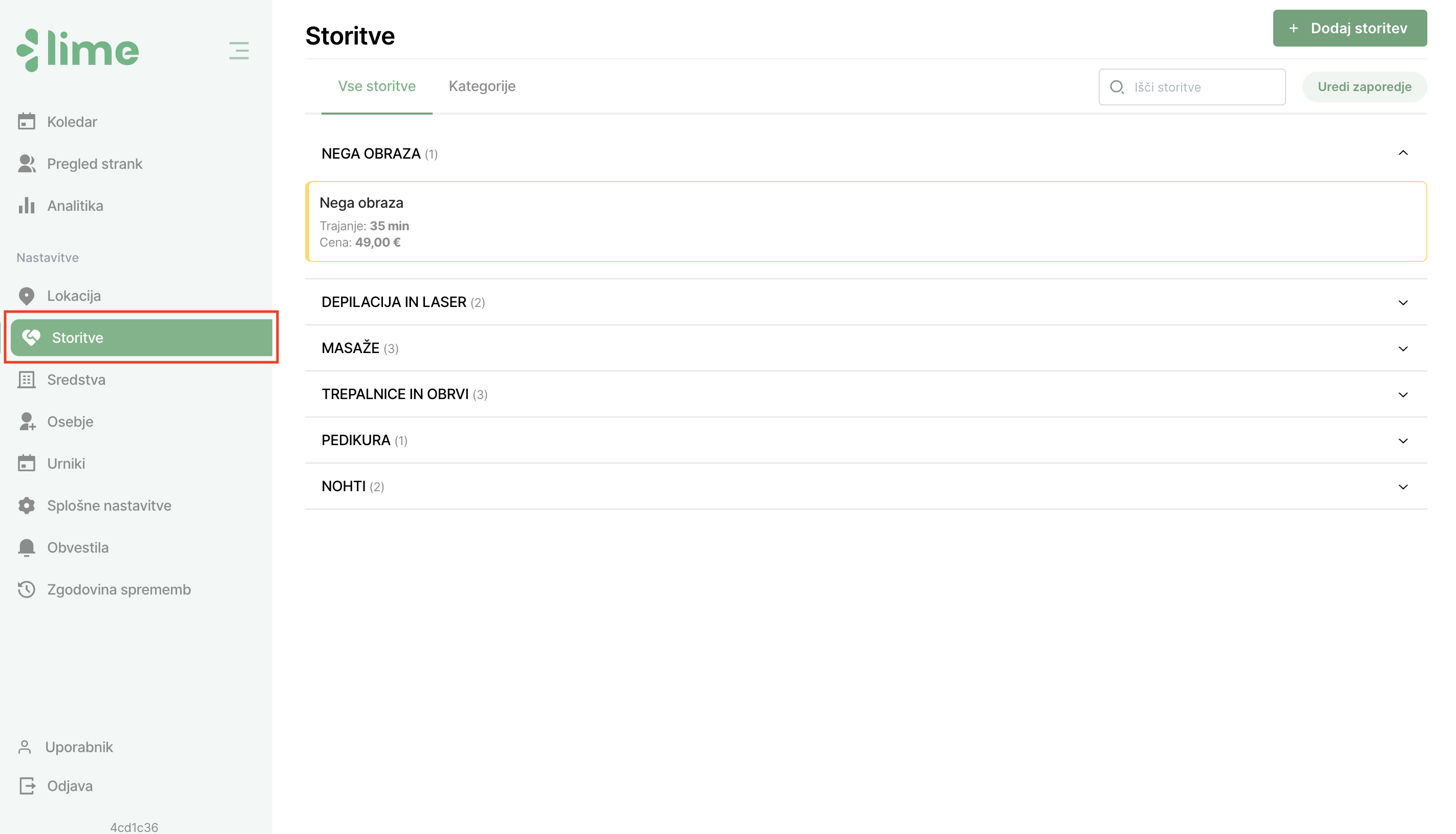
The "Services" tab is located under the "Location" tab in the left menu. Upon opening the tab, you will see all services categorized, along with individual categories. In this view, you can edit the display sequence of services and categories in the online form. To do so, click on the "Edit Sequence" button in the upper-right corner.
Adding a Service
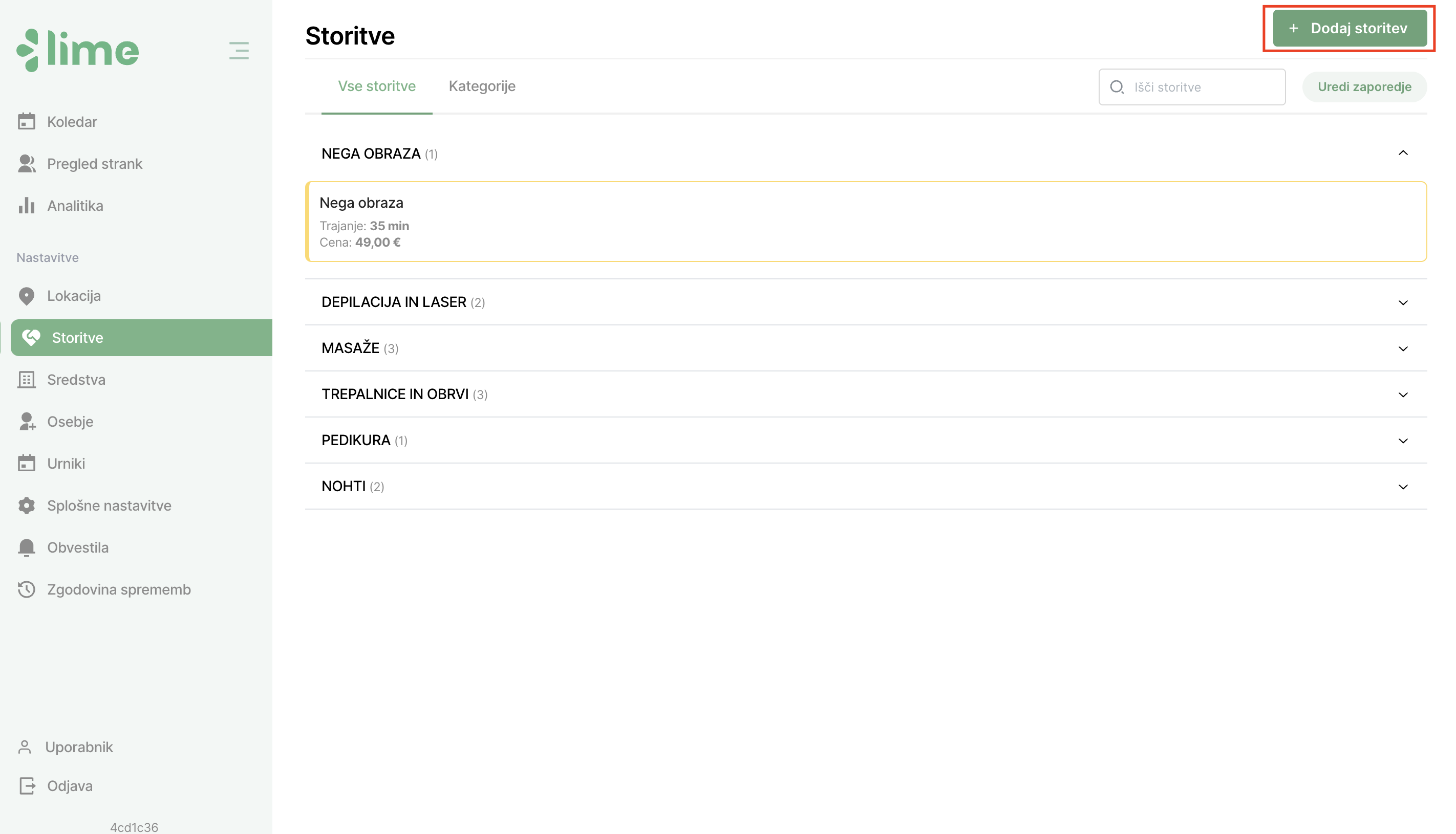
1. Start the process of adding a service by clicking the "Add Service" button.
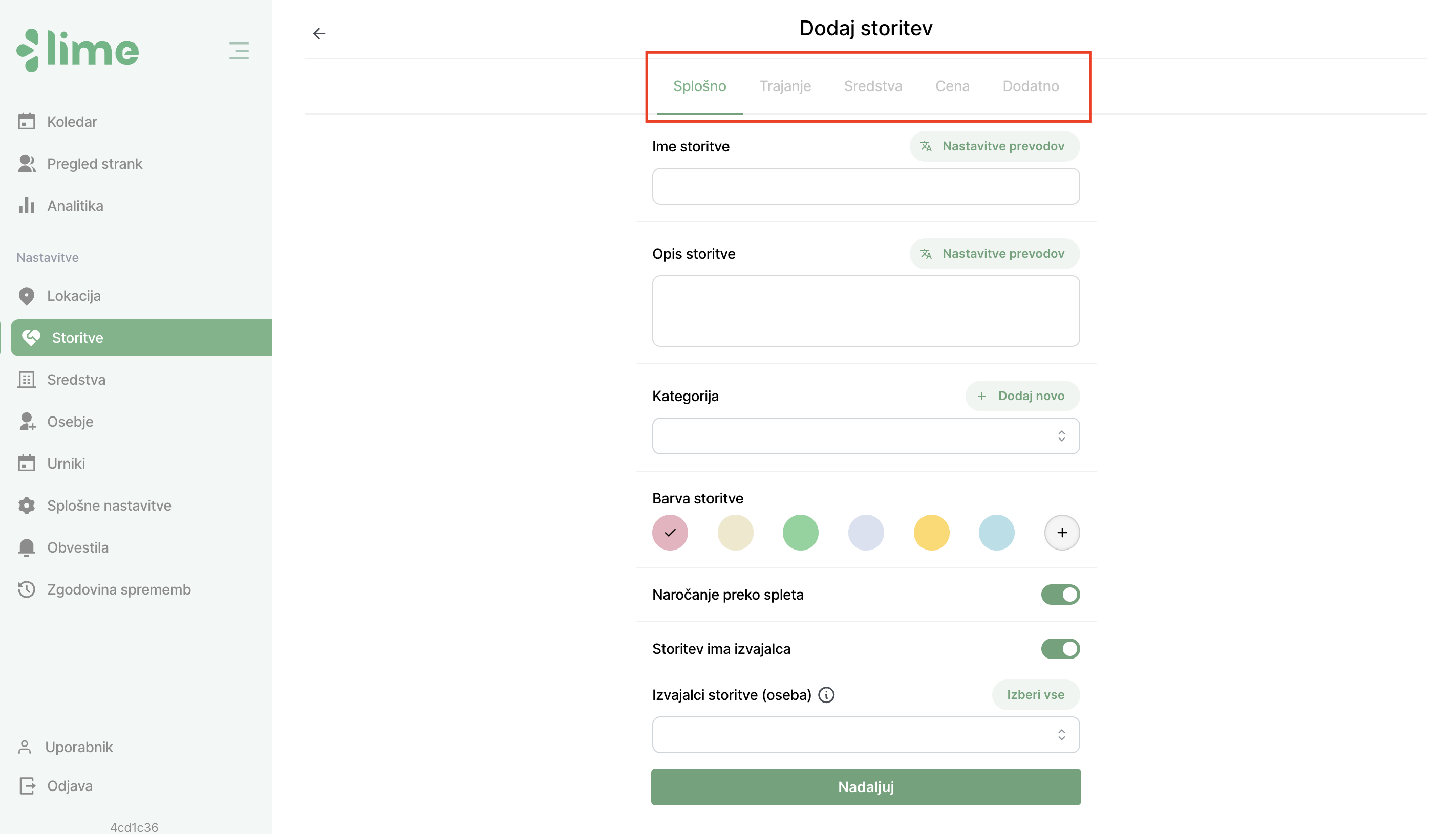
2. A module will open for adding a service, consisting of five steps: general settings, duration, resources, price, and additional settings.
2.1 General Service Settings
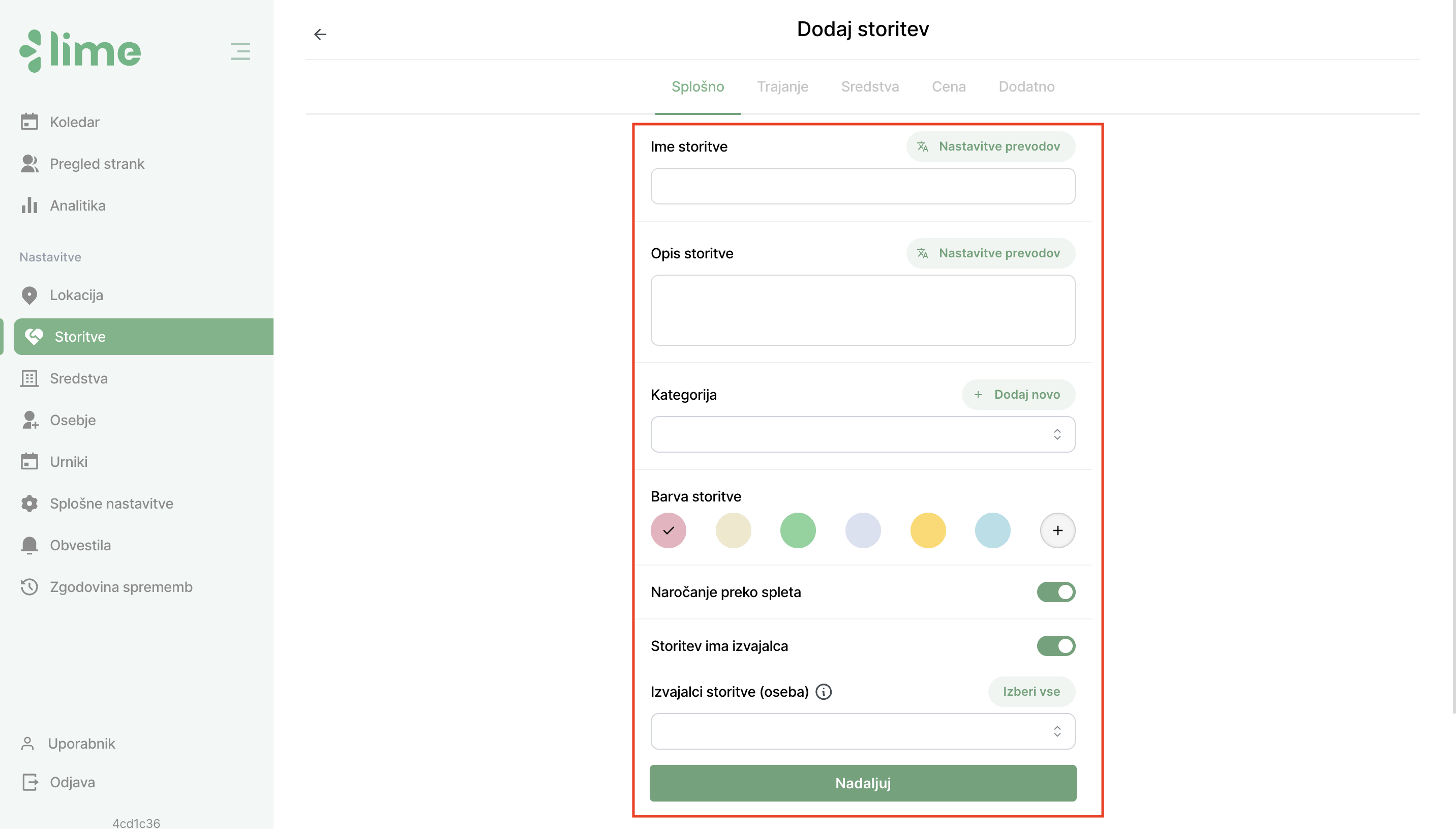
In the general service settings step, fill in the basic details about the service:
- Name and description (both can be translated into the following languages: English, German, Croatian, Bosnian, Serbian, Spanish, and Italian)
- Select a category or add a new one
- Specify the service color
- Choose whether online booking is available for the service or not
- Choose whether the service has an assigned provider. The service provider can either be:
- A person, or
- A resource. Resources are activated only for users who need a space or equipment to perform the service without staff presence. Learn more about resources here.
Click "Continue" to move to the duration step.
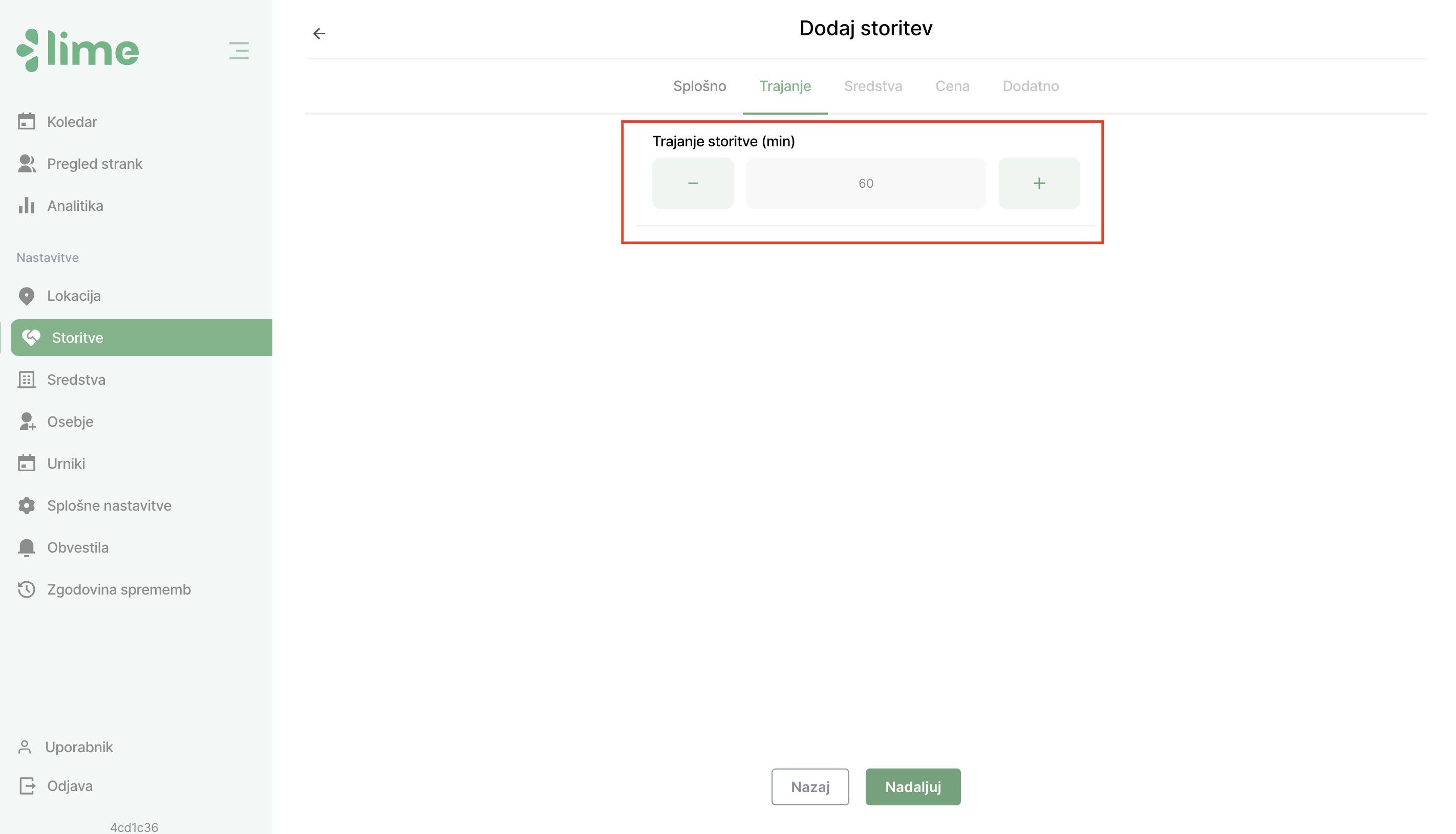
2.2 Service Duration
In this step, specify the duration of the service. Based on this, the availability of appointments on the online calendar and form will be generated.
In addition to the standard duration, we also offer advanced duration options, which you can read about here.
2.3 Resources
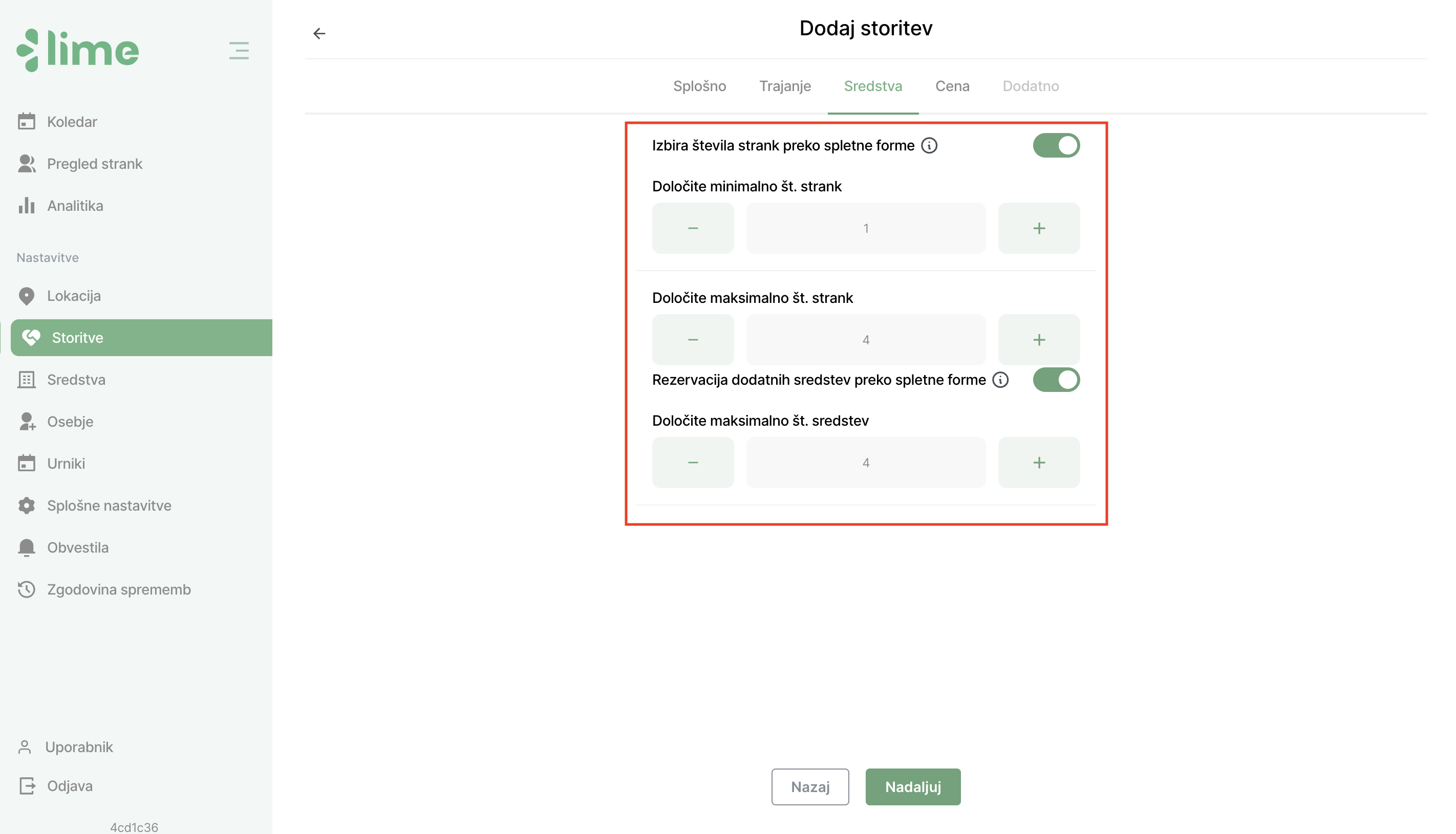
In this step, you define the parameters for resources. If you do not have resources activated, this step will not be visible, and the application will automatically guide you to the "Price" step. You can specify the following:
Selection of the number of clients via the online form
The customer can choose how many people will attend the service via the online form. If it exceeds the resource capacity, a new resource will automatically be activated (if available). In the case of occupied resources, the maximum number of clients can be less than the set capacity in the system.
Reservation of additional resources via the online form
The customer can reserve additional resources online, even if they are not fully booked. This affects the final price the customer pays.
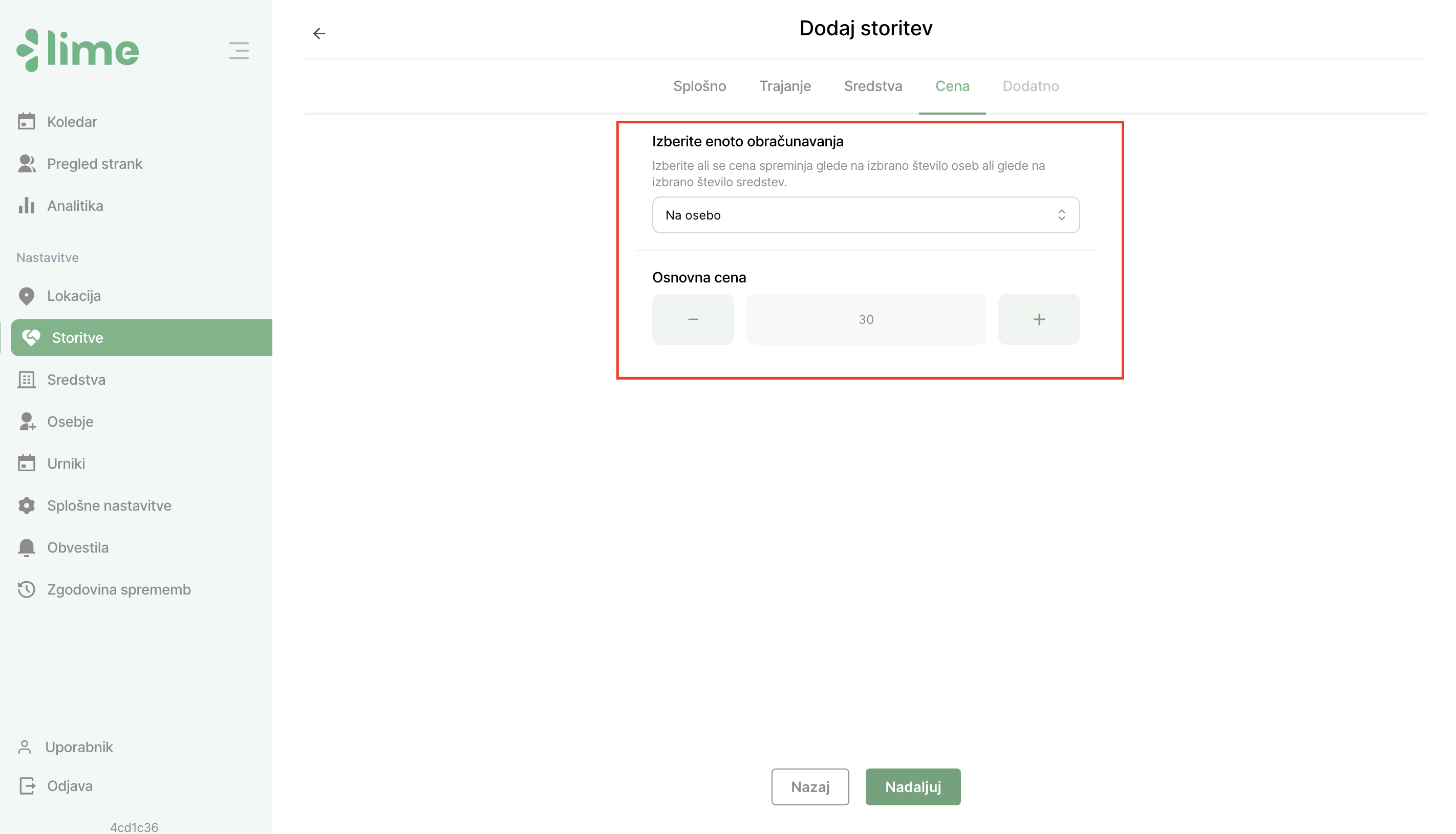
2.4 Price
In this step, specify the price of the service. If resources are enabled, you can define the unit of billing (based on the selected number of people or resources).
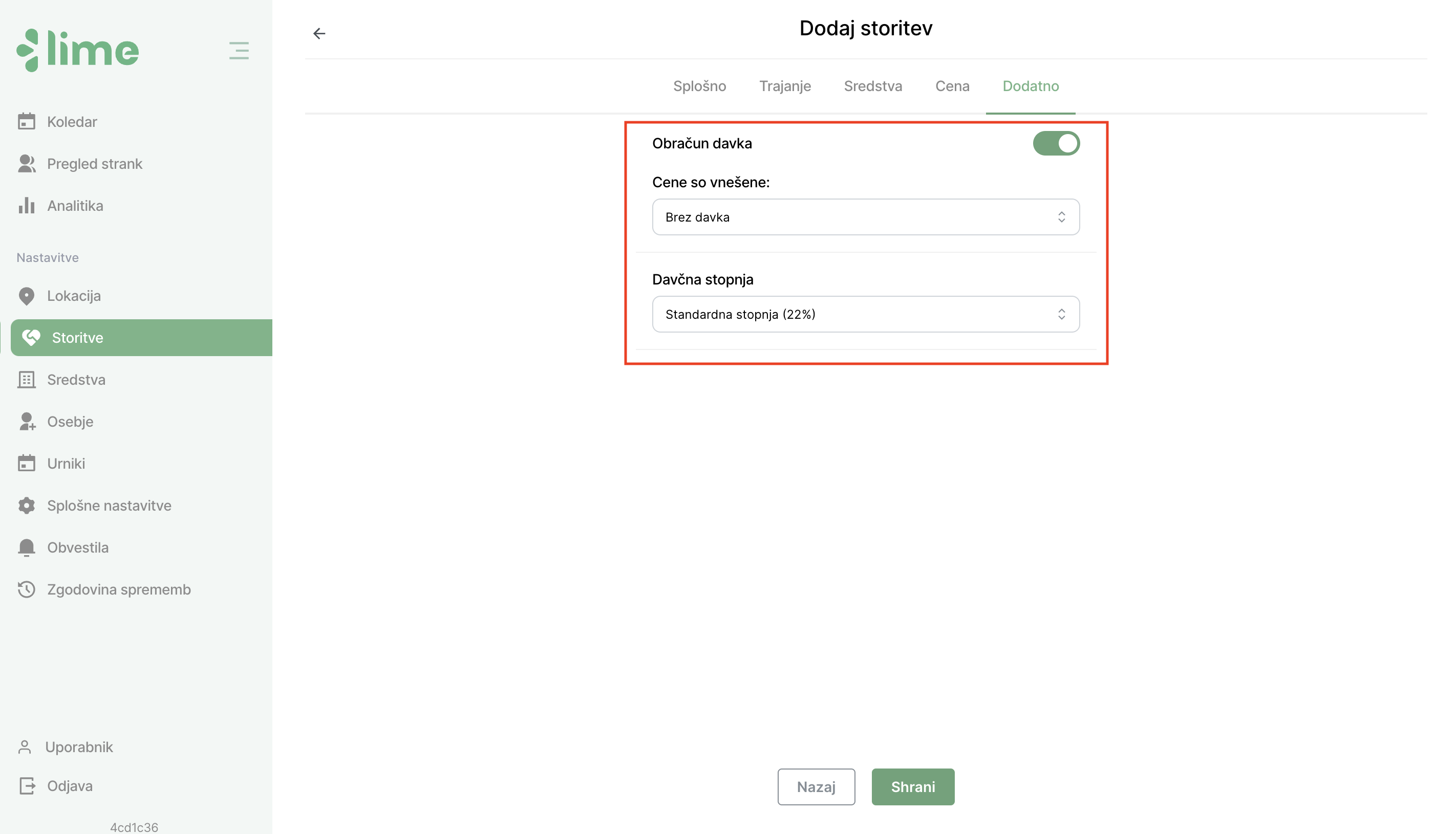
2.5 Additional Settings
In this step, you can optionally select tax billing. You can choose whether the listed prices are with or without tax and select the tax rate. This step is important for users using the fiscal cash register. Learn more about it here.
By clicking the "Save" button, the service will be saved and displayed on the main screen under "All Services".