
Merging Clients
Sometimes, due to data entry errors, changes in information, or adding appointments by different employees, clients may be duplicated in the database. To maintain an organized record, you can merge duplicate entries while keeping all important data, such as comments and appointment history.
1. Finding Duplicate Clients
- In the client overview, search for entries that belong to the same client.
- Compare details such as first name, last name, contact information, and appointment history.
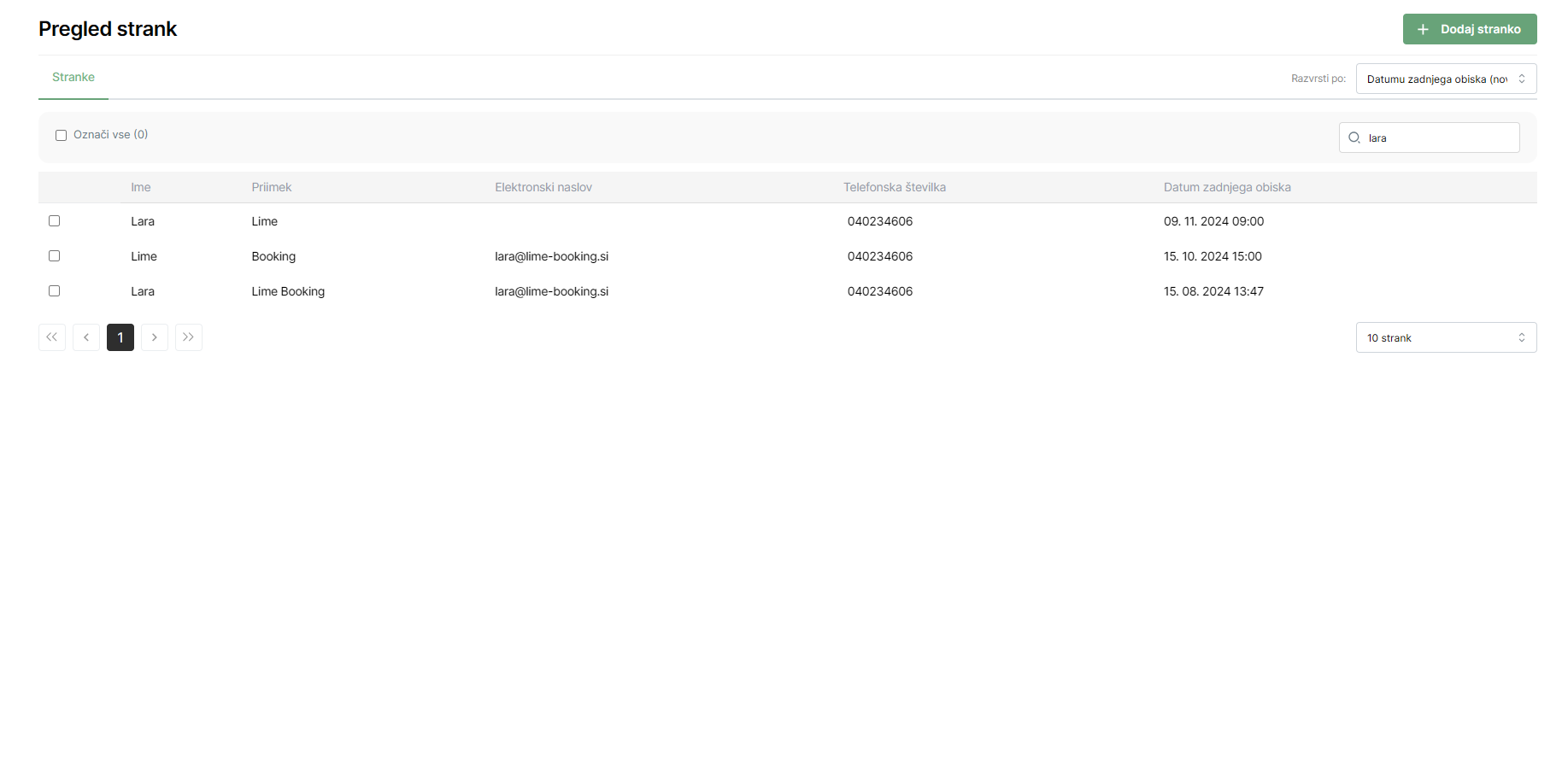
2. Marking Clients for Merging
- Select the clients you want to merge by checking the boxes next to their names.
- Once selected, click on the "Merge Selected" button at the top.
3. Choosing Data to Keep
- A window will open showing the data from all selected clients.
- Choose which data you want to keep on the merged client card, such as:
- First name
- Last name
- Phone number
- Email address
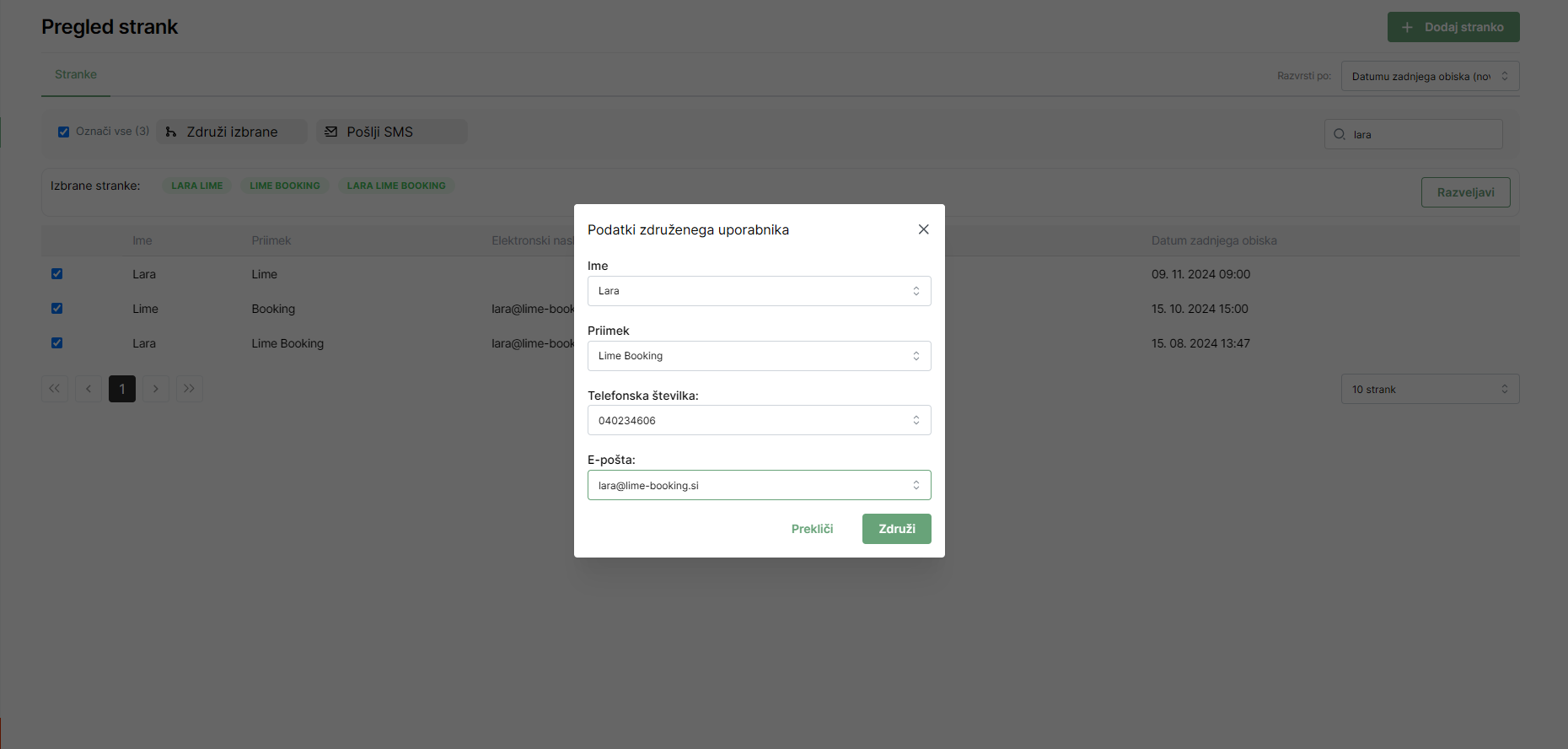
4. Saving Changes
- After selecting the data, click the "Merge" button to merge the clients.
- All comments, appointment history, and other data will be merged into a single client card.
