Schedule Management
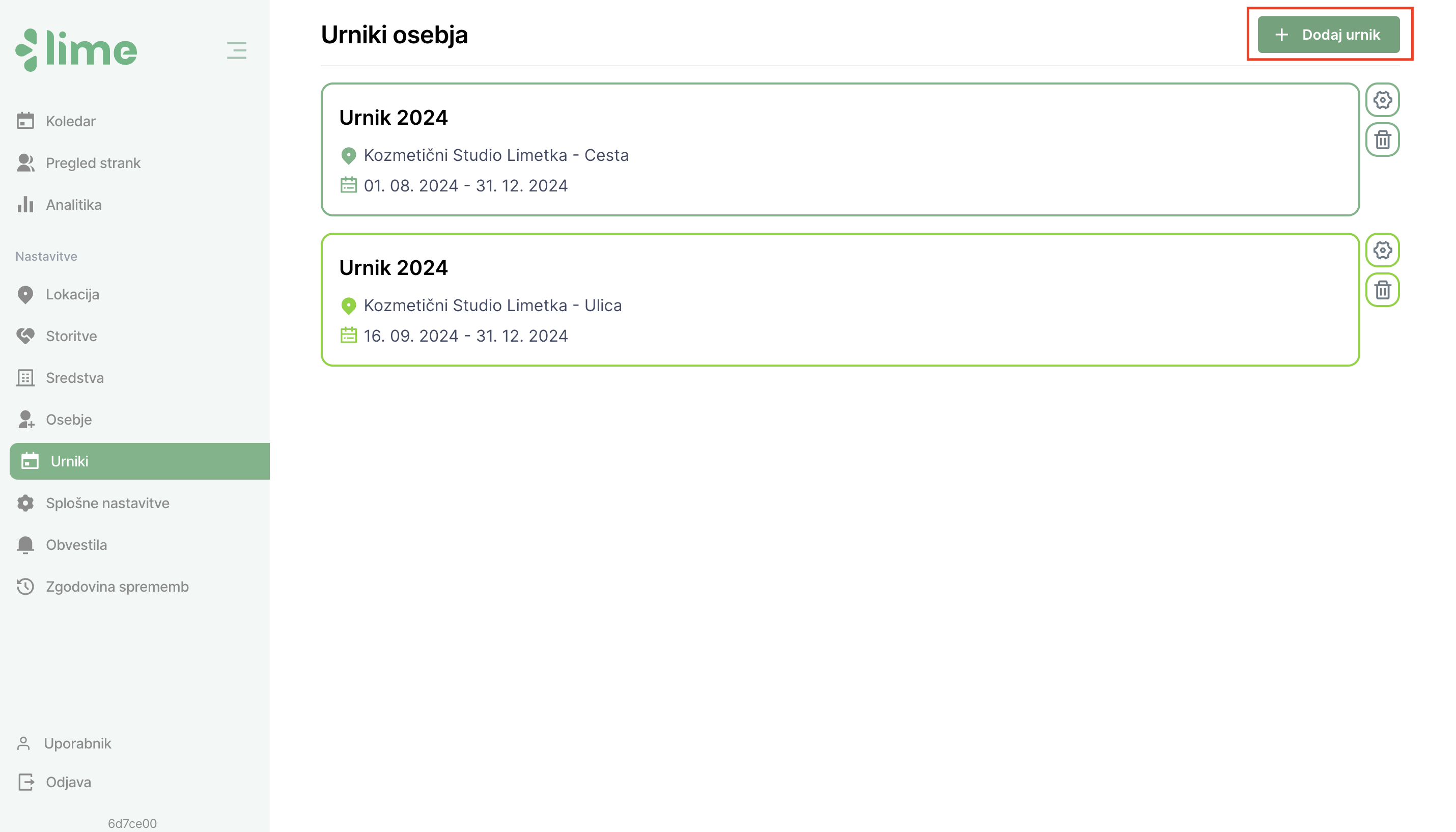
The "Schedules" tab is located under the "Staff" tab in the left menu. Upon opening the tab, you will see all the schedules, along with the location for which the schedule was created. A quick overview also includes the date range for which the schedule applies. Schedules are necessary for recording employee working hours and activating online booking for services.
Adding a Schedule
1. Start the process of adding a schedule by clicking on the "Add Schedule" button.
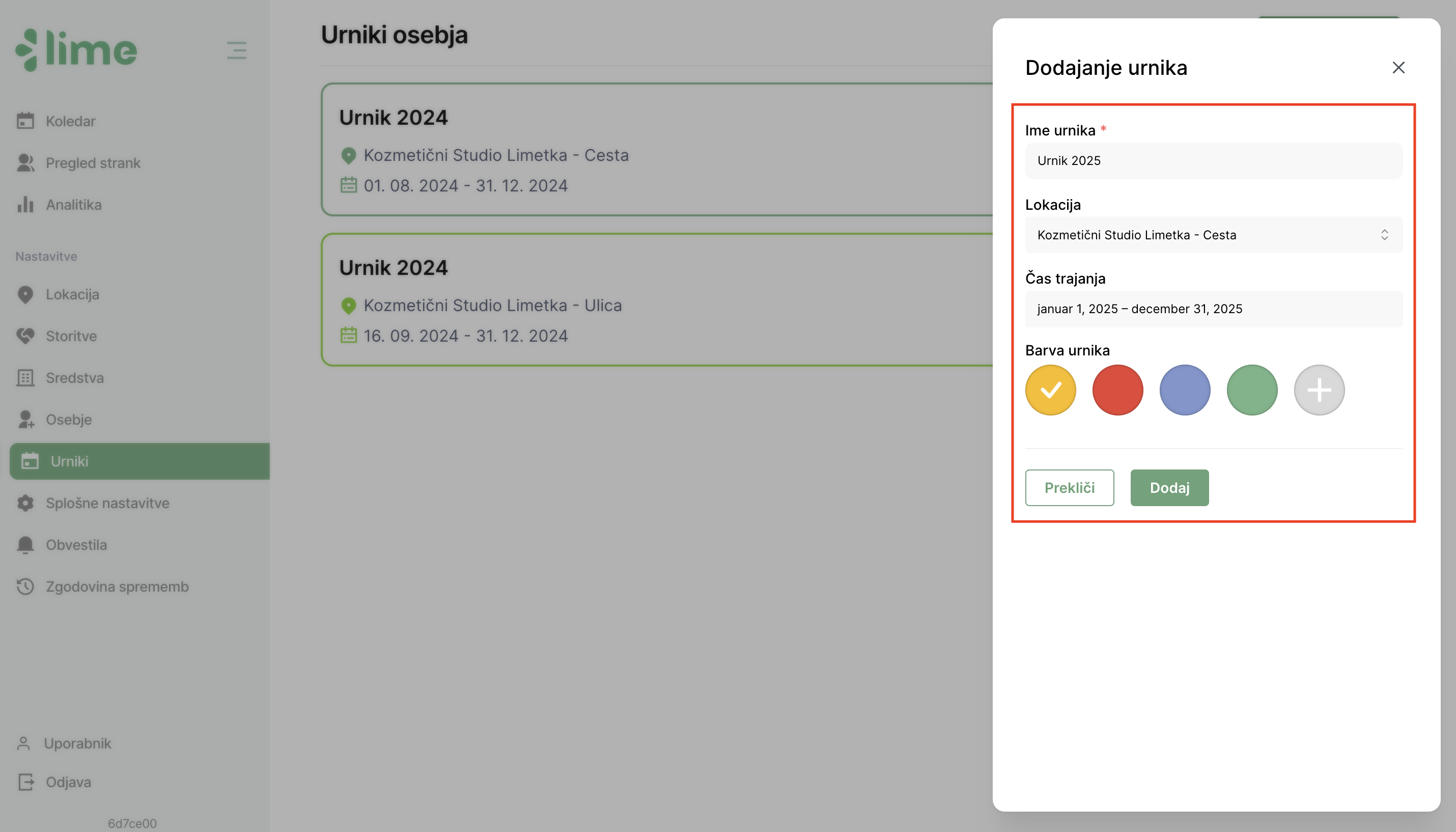
2. A module will open where you can fill in the basic details for the schedule: name, location, color, and date range. Click the "Add" button to create a new schedule.
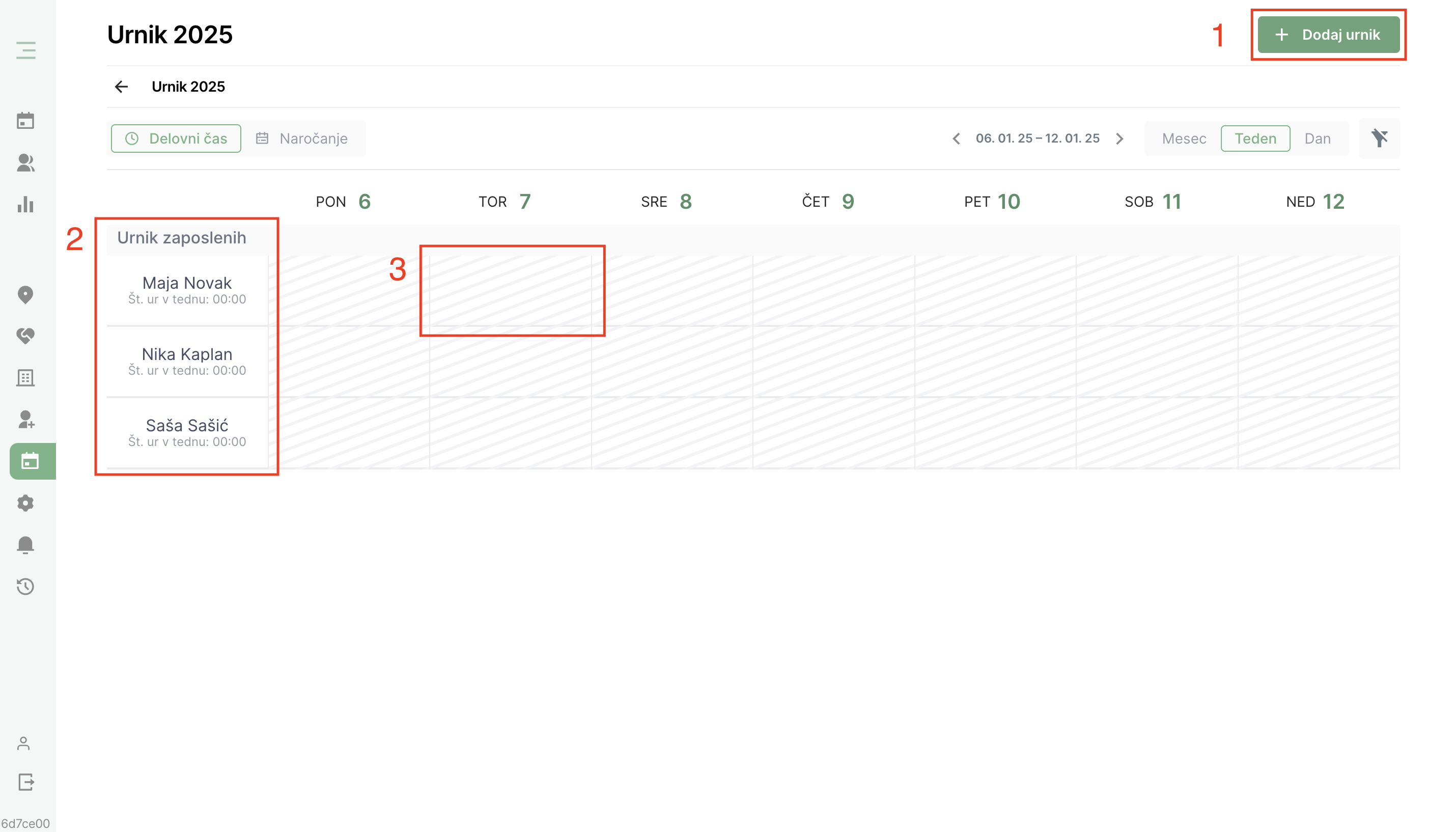
Employee schedules can be added in three different ways:
- Via the "Add Schedule" button
- By clicking on a specific employee
- By clicking on a selected date
Below, we will show all three methods for adding a schedule.
3.1 Adding via the "Add Schedule" Button
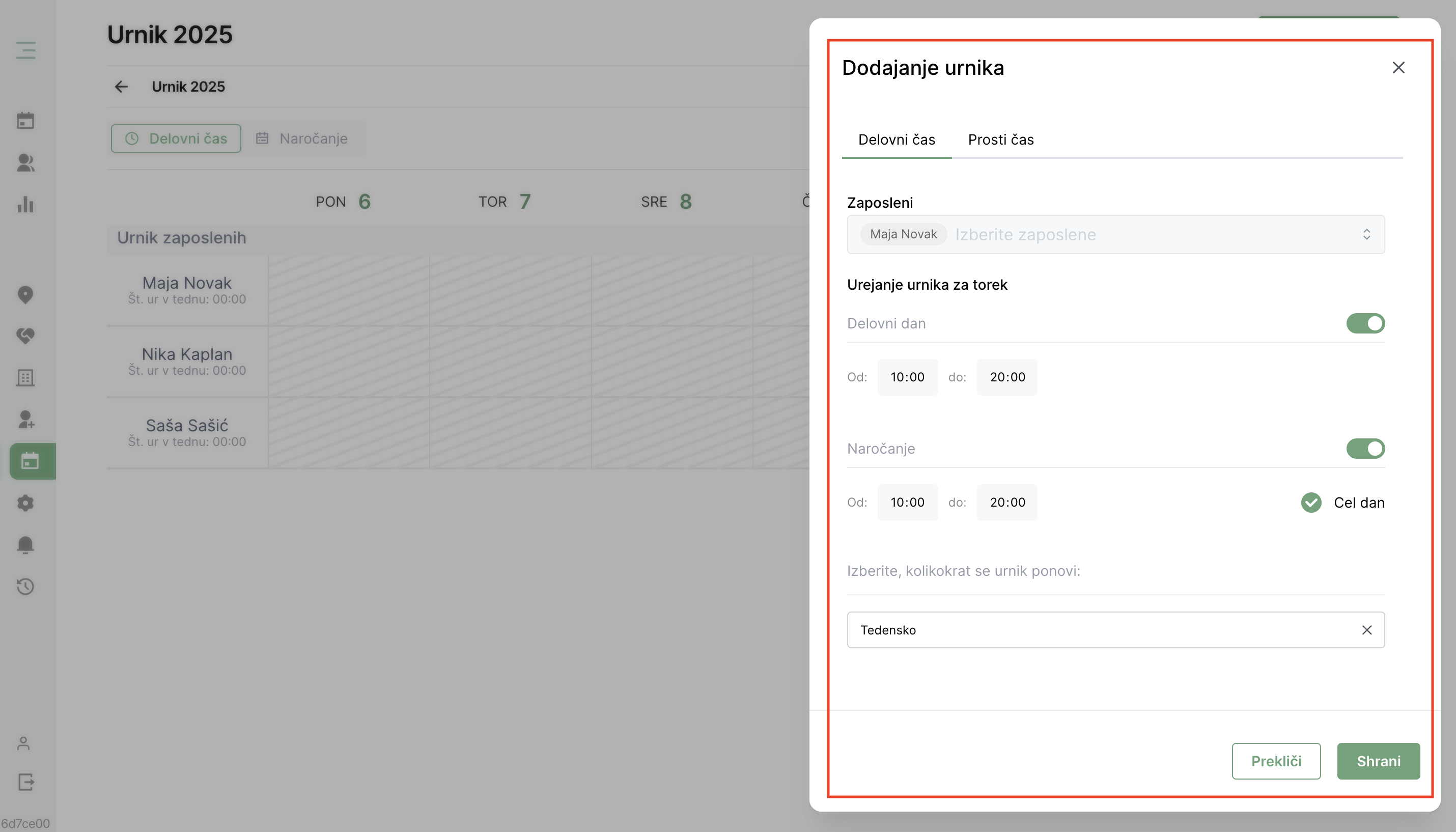
By clicking on the "Add Schedule" button, a module will open where you can create a schedule for multiple employees at once. Then, you will fill in the workday data for each specific day of the week and choose whether online booking is available for that day.
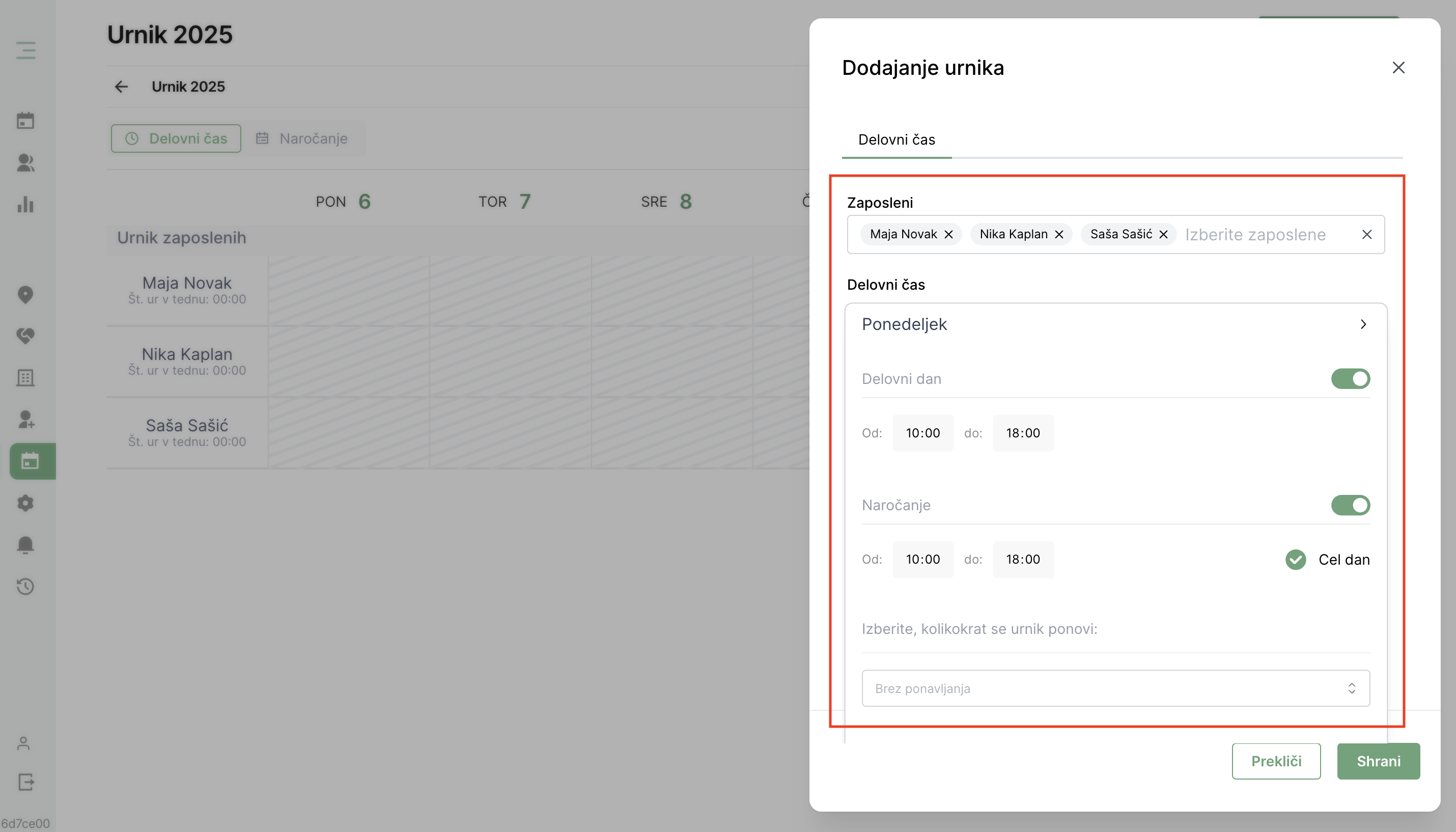
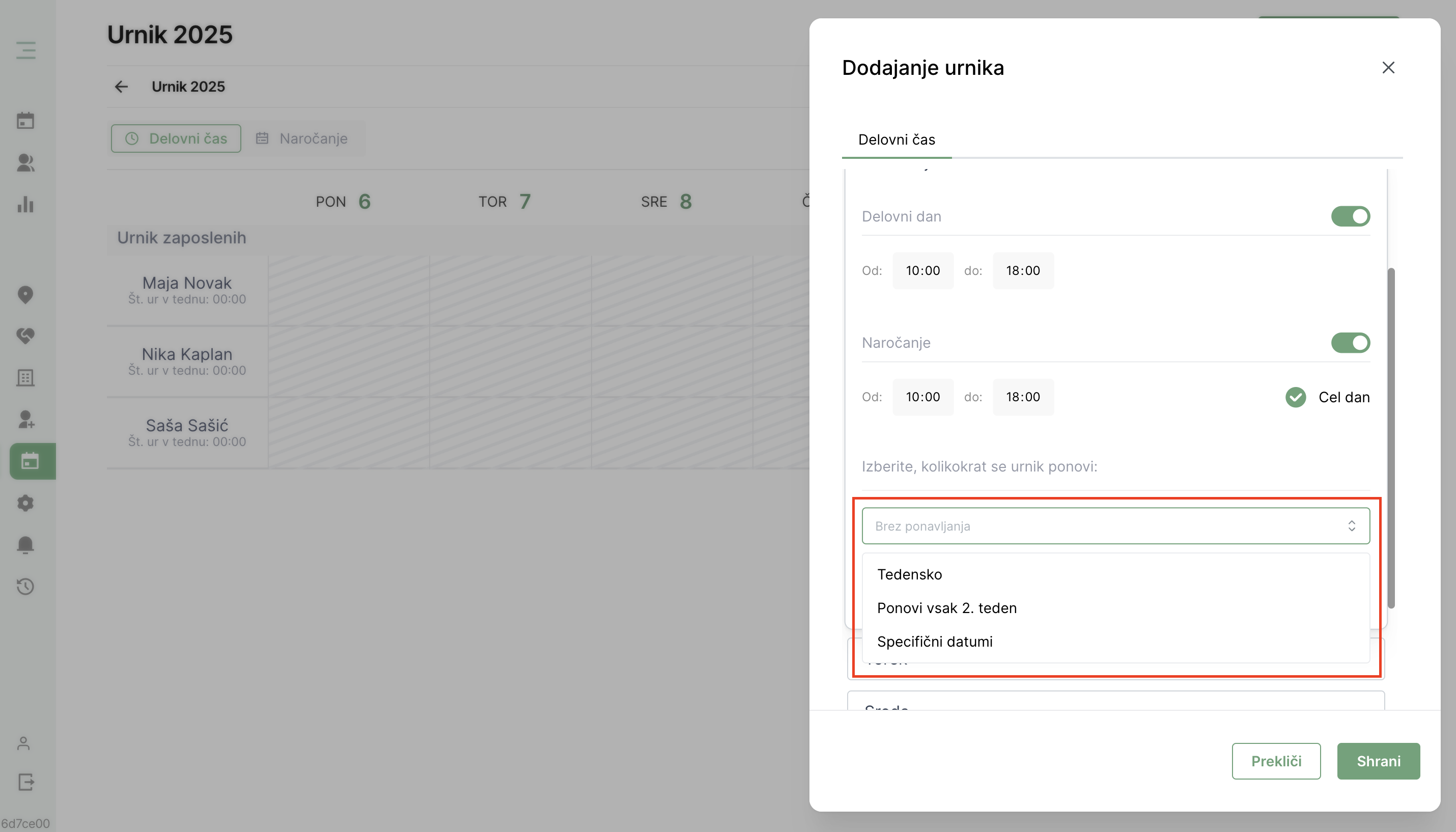
In the module, you can also select how often the schedule repeats. Options include weekly repetition, every other week, or specific dates.
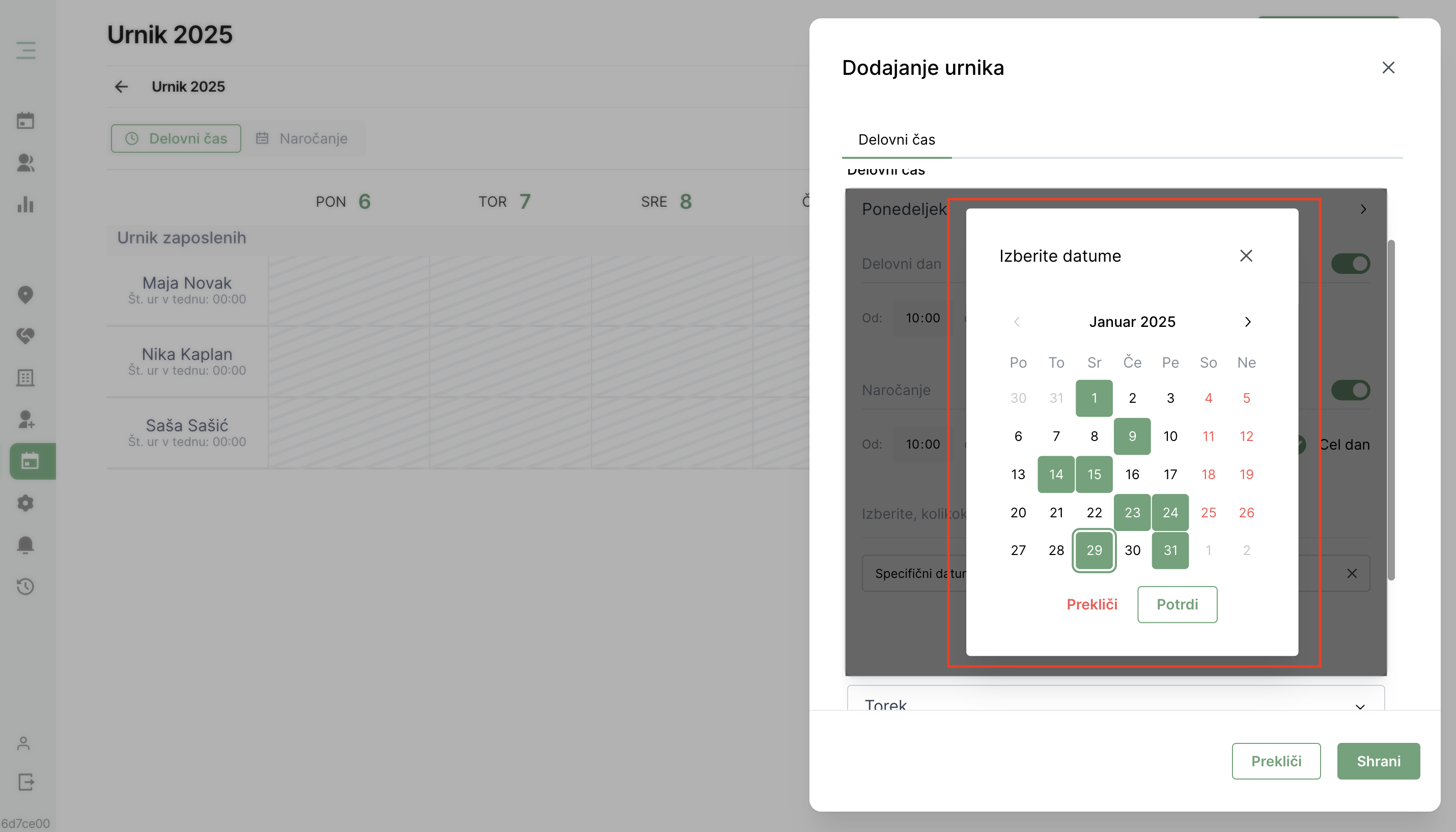
If you select specific dates, you can edit the schedule for all days, even if you initially selected just Monday, for example.
3.2 Adding by Clicking on a Specific Employee
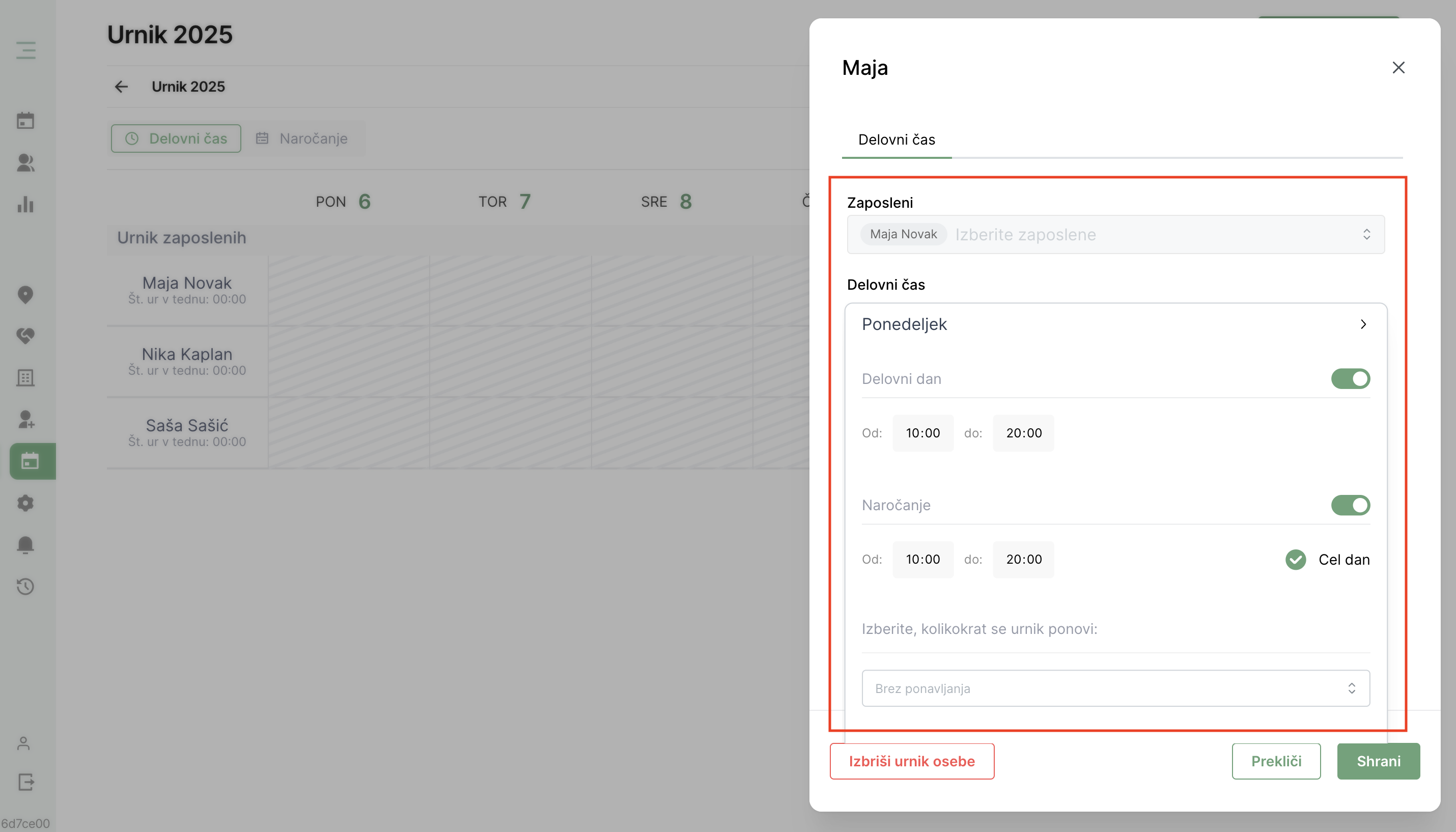
By clicking on a selected employee, a module will open where you can create a schedule specifically for that employee. You will then fill in the workday data for each day of the week and choose whether online booking is available for that day.
3.3 Adding by Clicking on a Selected Date
By clicking on a selected date, a module will open where you can create a schedule for a specific employee on that particular workday. If you click on Monday, for example, you will be editing the schedule only for that chosen Monday. In this view, you can also add breaks.