
Notification Management
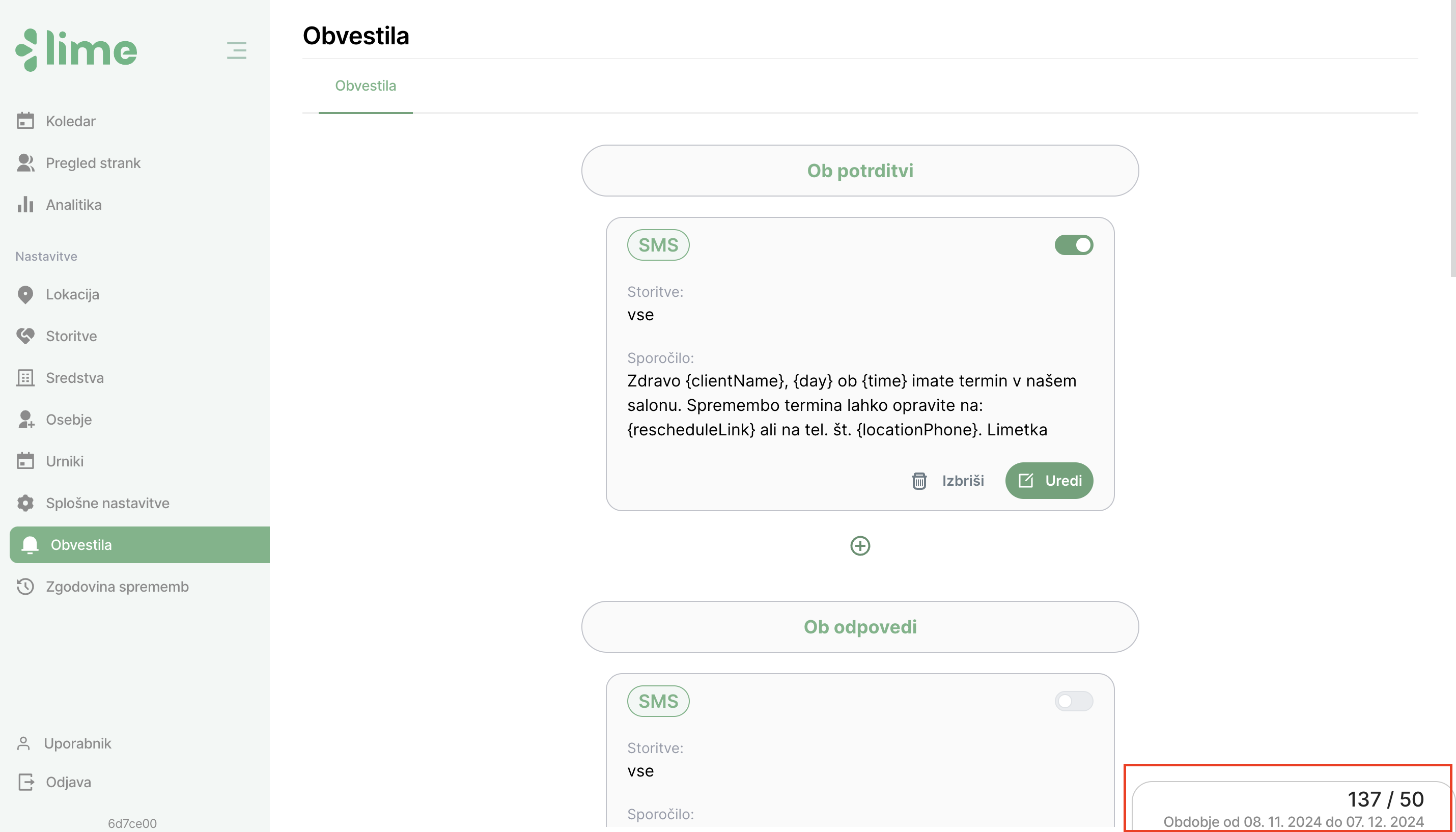
In the "Notifications" tab, you will see all the automated email and SMS reminders that have been created. You can add, edit, enable or disable, and delete them as needed. In the bottom-right corner, there is a counter showing the number of SMS messages sent during the billing period, so you can always see how many SMS messages remain in your selected package.
Adding a Notification
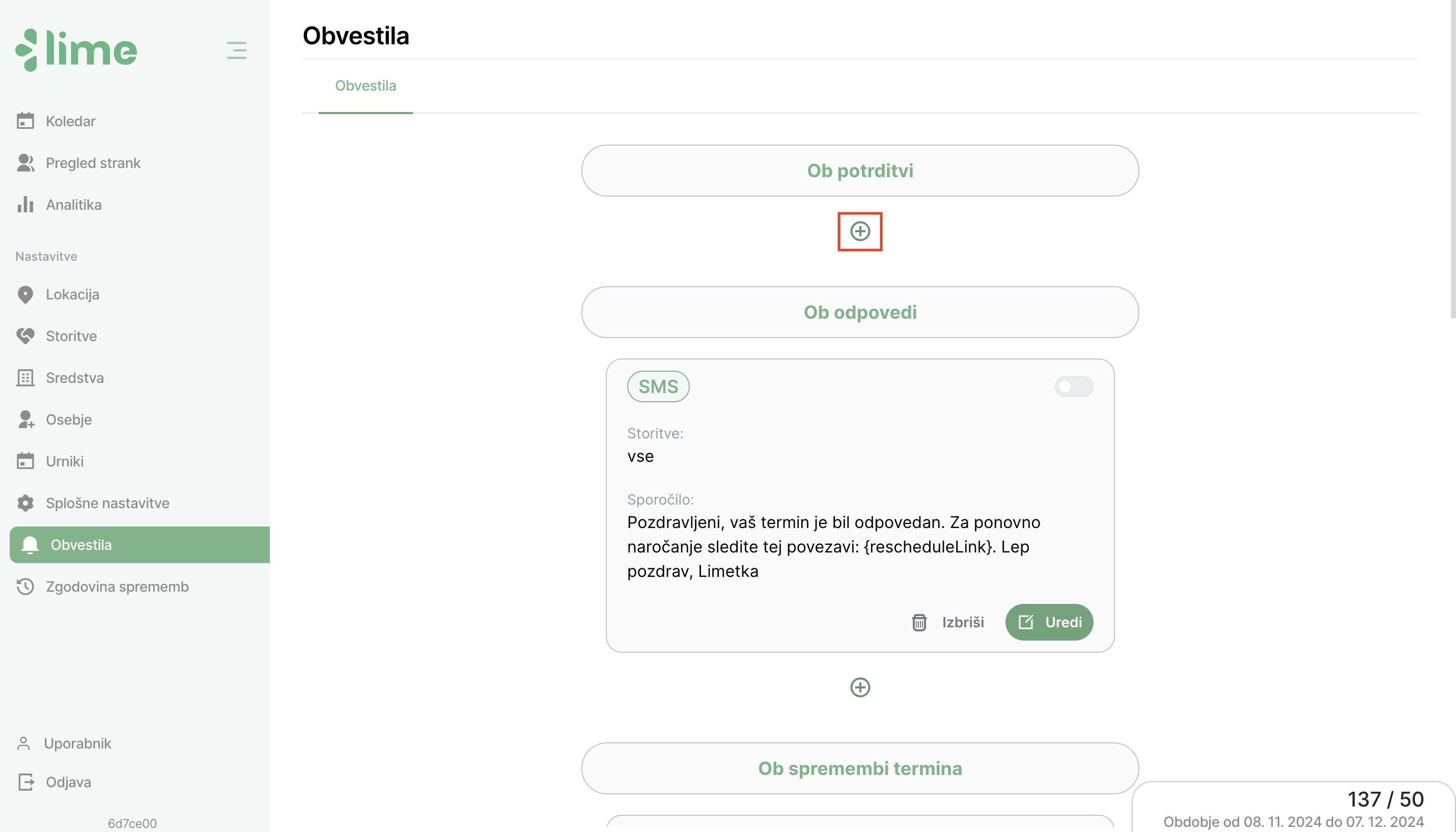
1. Start the process of adding a notification by clicking on the "+" button.
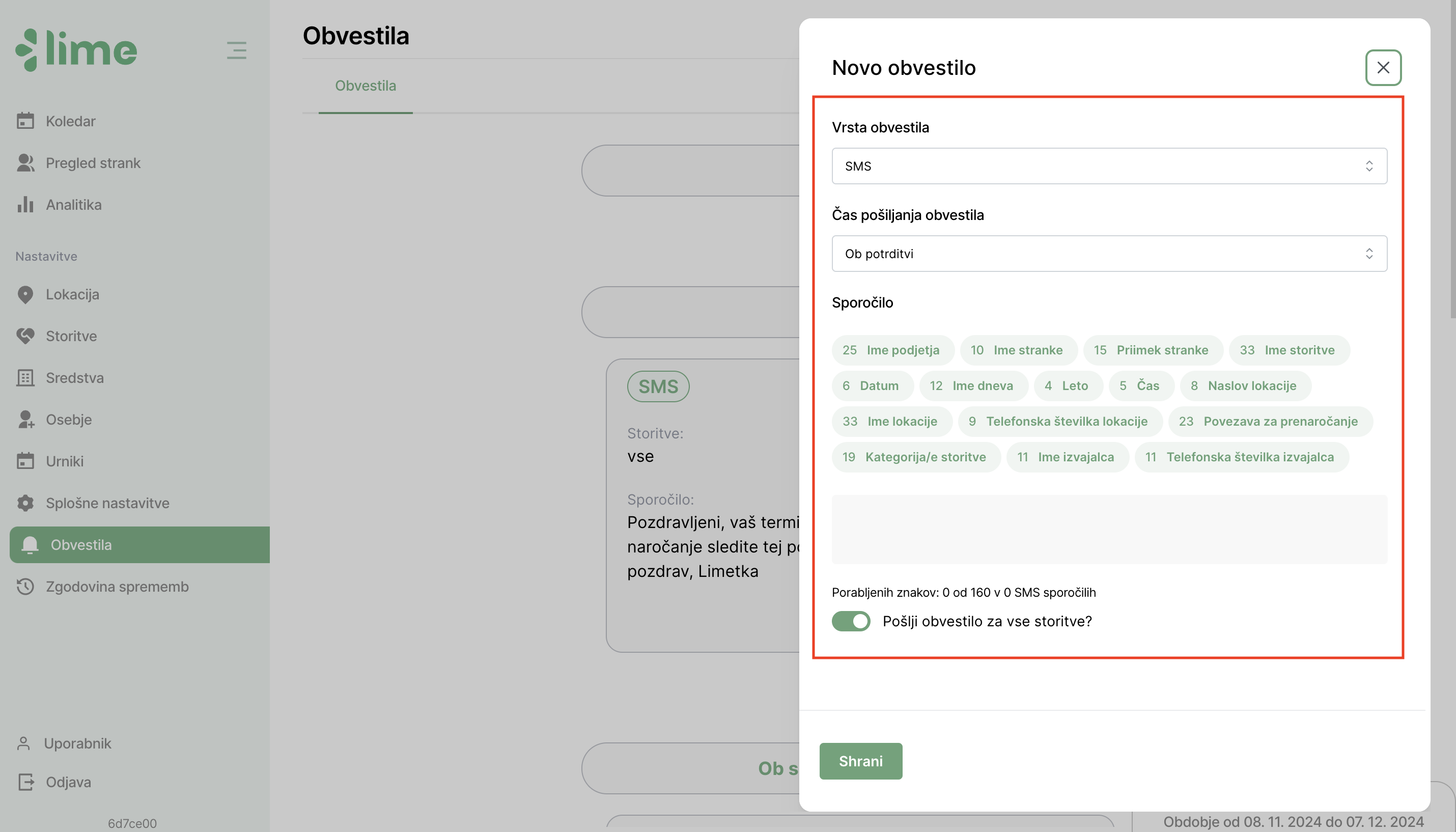
2. A module will open where you can select the type of notification, the sending time, the content, and whether you want to send the notification for all services or just for specific ones.
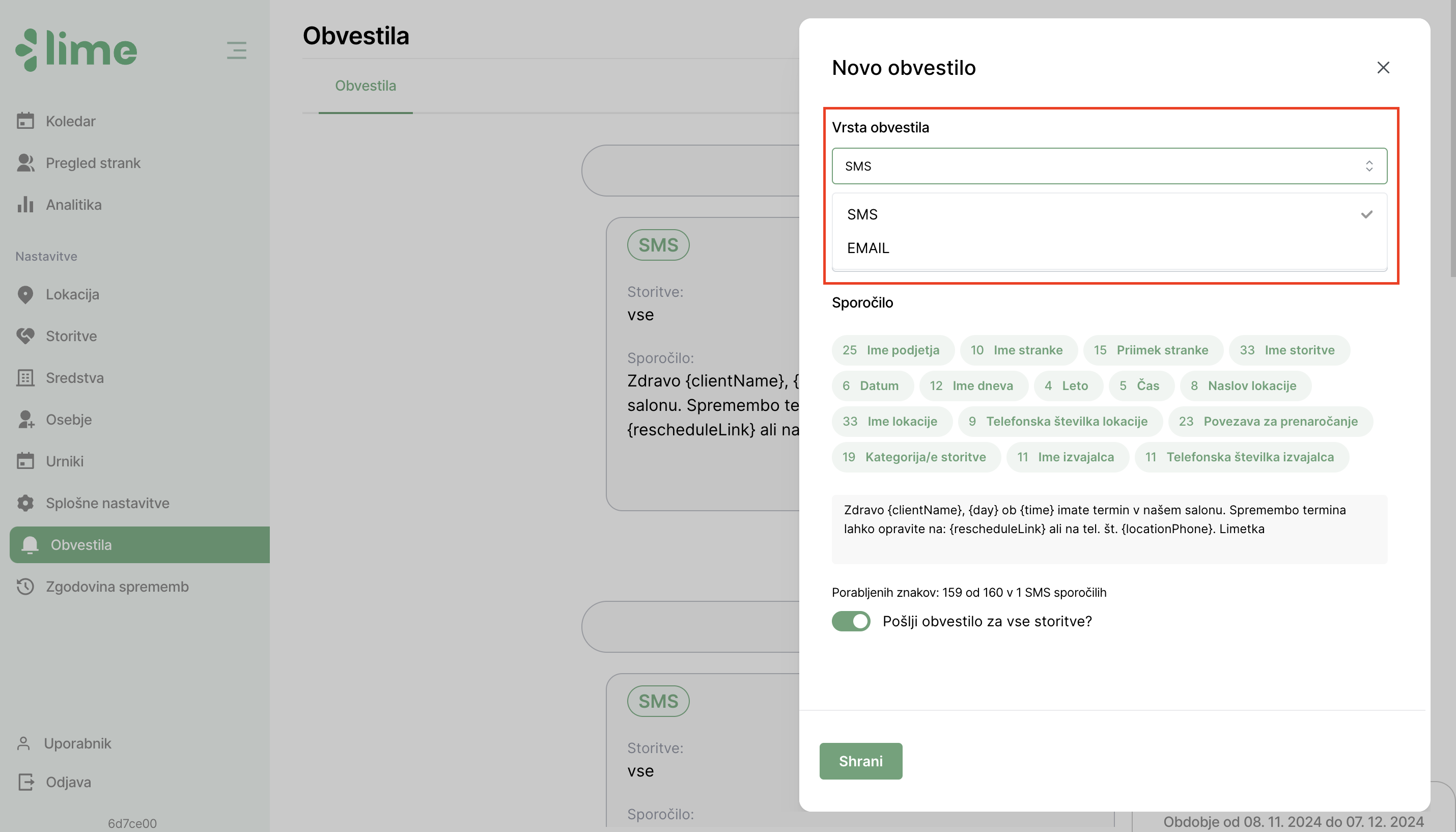
2.1 Notification Type
The application allows the sending of automatic email and SMS messages. Email messages are free and are available in all packages. SMS messages are available in the Advanced and Pro packages, where 150 messages are already included in the package. Any additional SMS messages will be charged according to the applicable pricing list.
2.2 Notification Sending Time
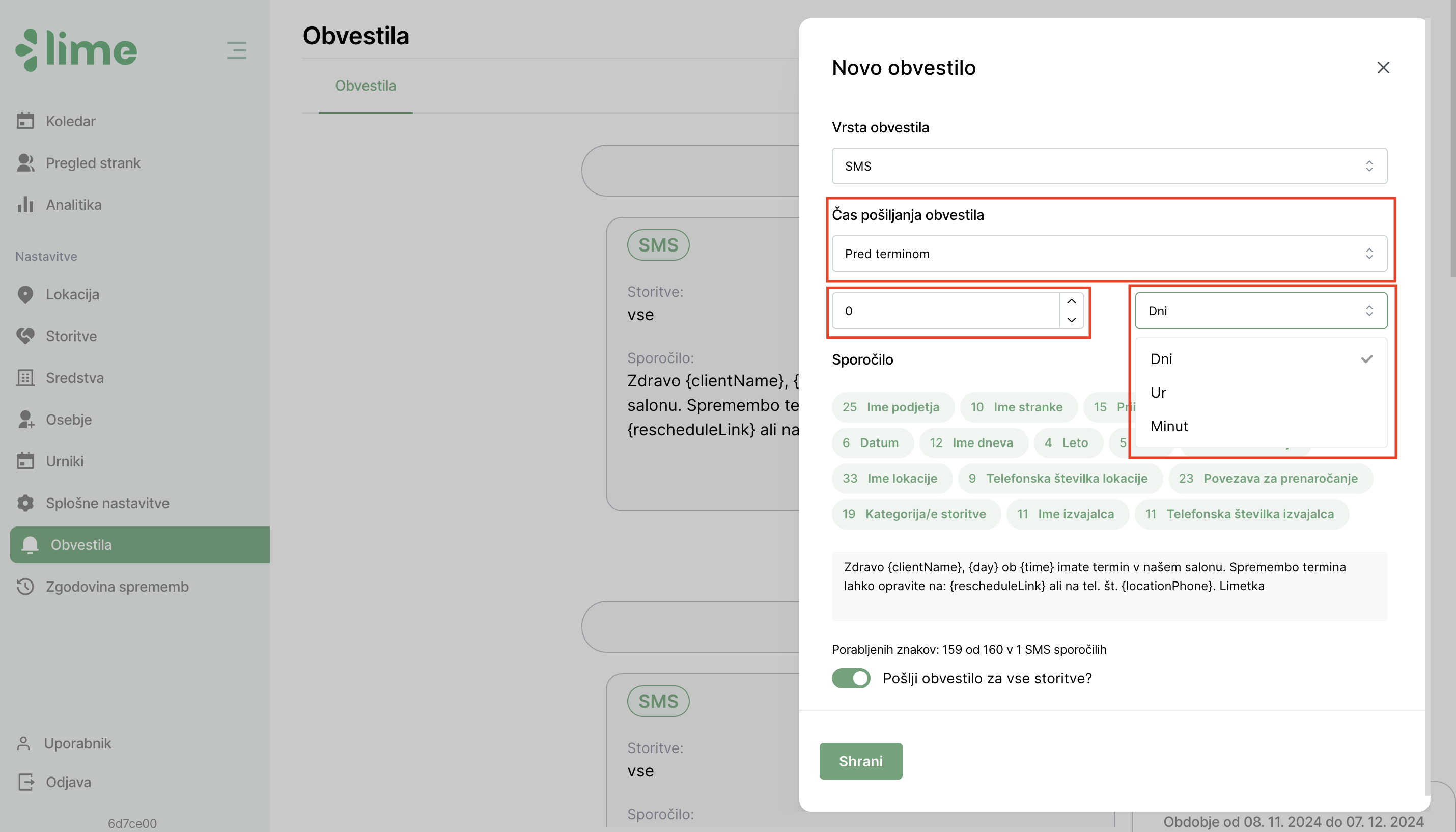
Notifications can be sent upon appointment confirmation, cancellation, rescheduling, before the appointment, and after the appointment. For the last two options, you can customize the sending time sequence, specifying how much time before or after the event the notification will be sent.
2.3 Message Content
When composing the message content, you can use dynamic fields to personalize the message further. The character limit for SMS messages is 160. If you exceed this limit, the message will be split into multiple SMS messages, which will be displayed by the character counter below the content input field. The character count also depends on the use of emojis (😁🤗😎😴🔥).
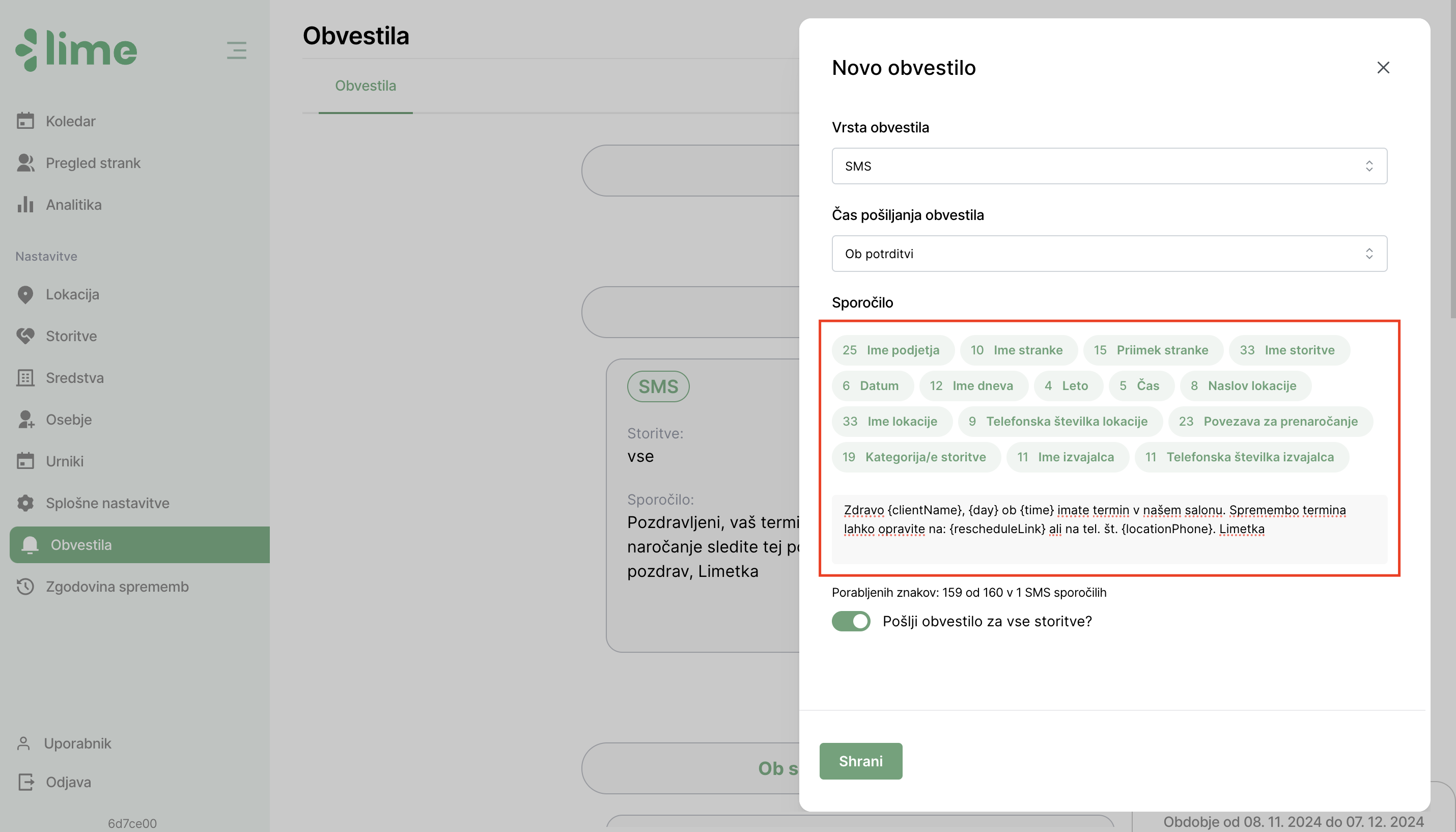
By clicking the "Save" button, you will have successfully created a new notification.