Location Management
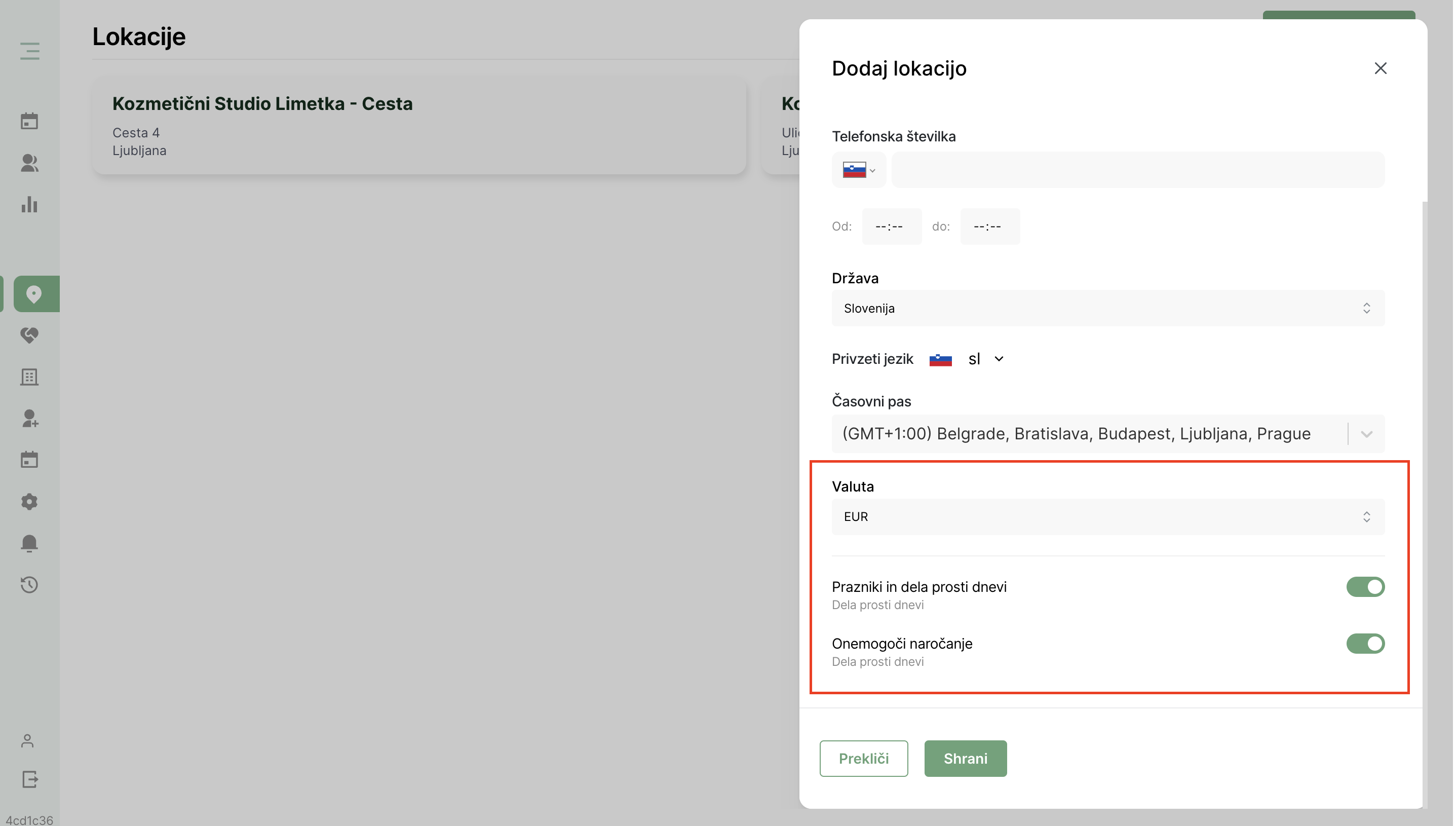
To access the general view of all locations, click the ''Locations'' button in the left menu. The list will display the names of the locations and their addresses. By clicking on a specific location, you can edit or delete it. To add a new location, click the ''Add Location'' button in the upper-right corner.
Adding a Location
1. Click on the ''Add Location'' button to open the module for adding a location.
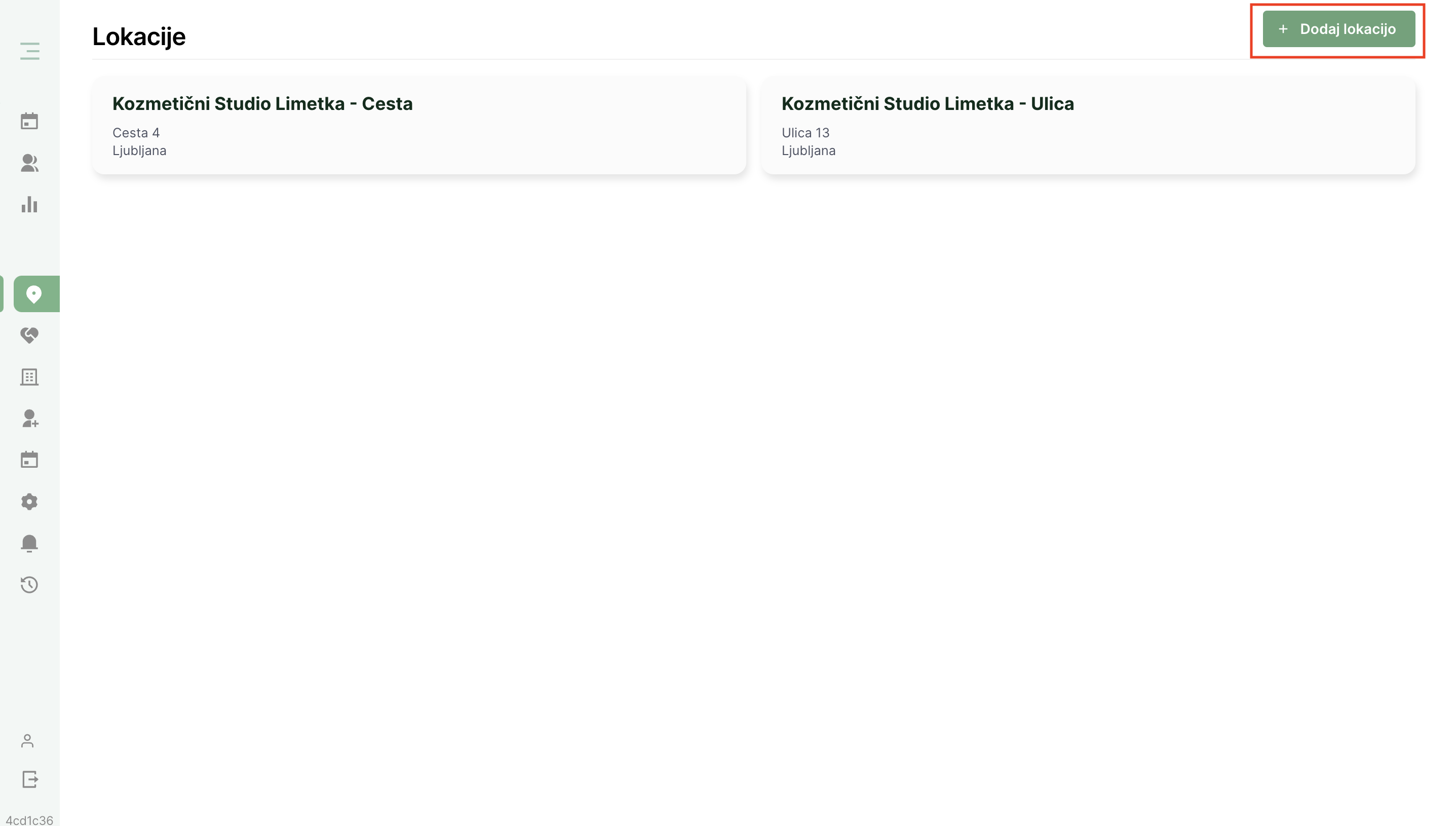
2. In the first part of the module, fill in the basic location details: location name, address, phone number (optional), and business hours.
The selected business hours will generate a view in the online calendar under the ''Calendar'' tab. If you have split working hours (e.g., Mon-Wed: 8:00 AM - 4:00 PM, Thu-Sat: 3:00 PM - 9:00 PM), you must choose the earliest and latest working hours for your location (in this case, the working hours of the location will be 8:00 AM - 9:00 PM).
The detailed working schedule can then be set in the ''Schedules'' tab, where you can create split working hours.
In this step, select the country, the default language for the location, and the time zone.
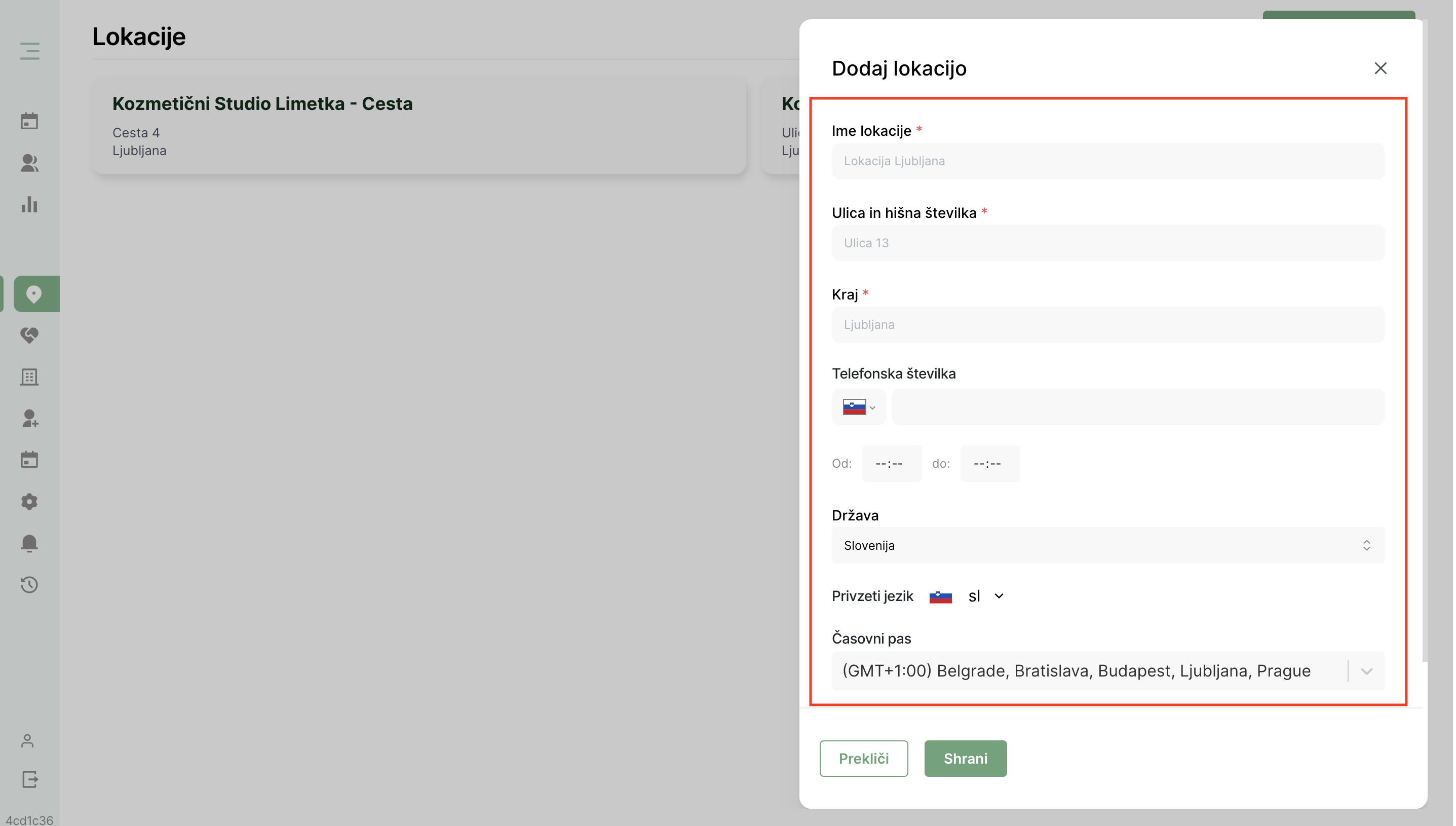
3. In the second part of the module, select the currency, the option to display holidays and non-working days on the calendar, and the option to disable booking on non-working days. Finish adding the location by clicking the ''Save'' button.